

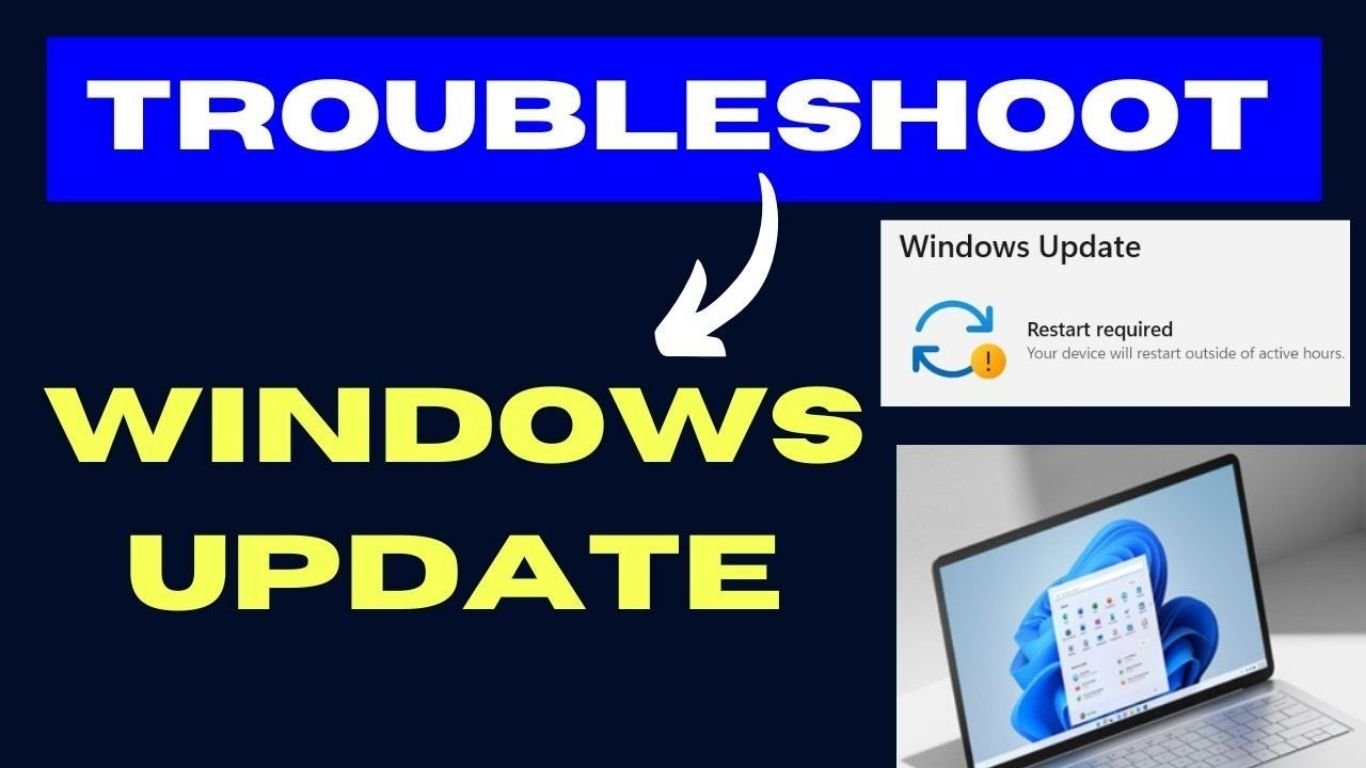
Keeping your system updated is one of the most important things you can do to maintain security, performance, and stability. Microsoft regularly releases updates for Windows that fix bugs, patch security vulnerabilities, and improve overall system functionality. If you’re experiencing update issues, read our Windows Update Not Working guide for step-by-step troubleshooting.
This Windows Update Complete Guide will walk you through everything you need to know in simple language—from how updates work to fixing common problems and optimizing your system for smooth updates.
What is Windows Update?
Windows Update Complete Guide is a built-in Microsoft service..that automatically downloads and installs updates for the Windows operating system. These updates may include:
- Security patches
- Feature upgrades
- Driver updates
- Bug fixes
- Performance improvements
- The purpose of Windows Update Complete Guide is to keep your system secure and running efficiently without requiring manual intervention.
Why Windows Updates Are Important
Understanding the importance of updates helps you avoid skipping them.
1. Security Protection
Hackers constantly find vulnerabilities in operating systems. Updates patch these security holes.
2. Performance Improvements
Updates often optimize system speed and reduce lag.
3. New Features
Microsoft frequently adds new tools and UI improvements through updates.
4. Bug Fixes
If updates fail or cause problems, check our Windows Update Error Codes guide for solutions.
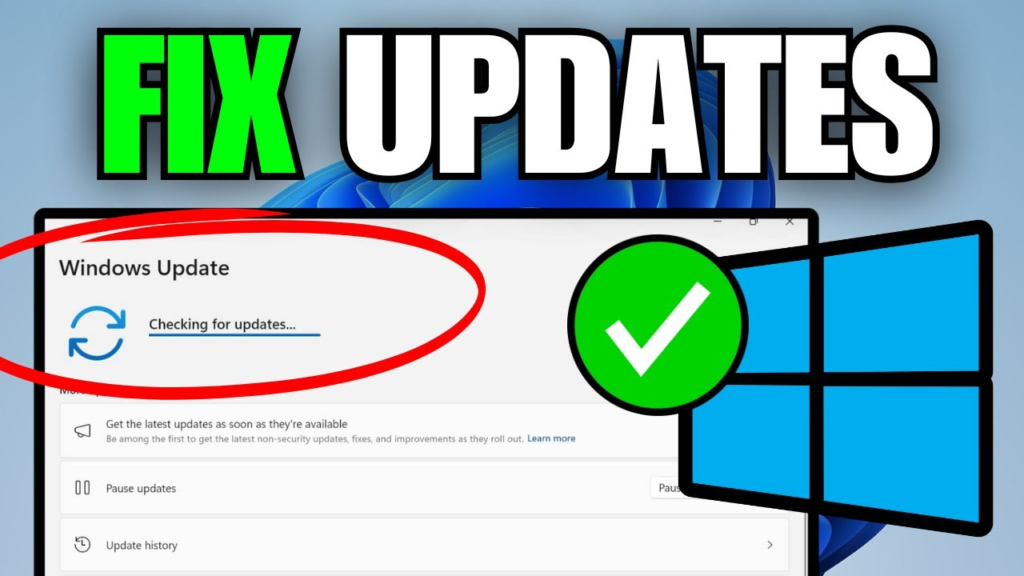
Types of Windows Updates in Windows Update Complete Guide
Microsoft releases different types of updates:
1. Feature Updates
These are major updates released once or twice a year. They introduce new features and major changes.
2. Quality Updates
These are small updates released frequently to fix bugs and improve security.
3. Driver Updates
These ensure your hardware (graphics card, sound, etc.) works properly.
4. Security Updates
Critical patches that protect your system from malware and cyber threats.
How Windows Update Works
When you check for updates:
- Windows connects to Microsoft servers
- It checks available updates for your device
- Downloads required files
- Installs updates automatically or after restart
- Confirms successful installation
This process usually runs in the background, so users are not disturbed.
How to Check for Updates (Step-by-Step)
Follow these simple steps:
- Open Start Menu
- Go to Settings
- Click Windows Update
- Press Check for updates
- Wait for results
- Install available updates
This is the most basic function in the Windows Update Complete Guide
How to Fix Windows Update Errors
Users see error messages like 0x80070002 or 0x8024a105.
Full explanation here: Windows Update Error Codes
Windows Update Stuck? Here’s What to Do
Updates freeze at 0%, 50%, or 100%.
Step-by-step solution: Windows Update Stuck Fix
Common Windows Update Problems and Solutions
Sometimes Windows fails to check or install updates.
Read full fix: Windows Update Not Working
How to Manually Install Windows Updates
Sometimes automatic update fails completely.
Learn method: Windows Update Manual Instal
How to Pause Windows Updates
Sometimes you may want to temporarily stop updates:
- Go to Settings
- Open Windows Update
- Click Pause updates
- Choose time duration (up to 5 weeks)
This is useful when working on important tasks.
How to Optimize Windows Update Speed
If updates are slow, try these methods:
1. Use Fast Internet Connection
Prefer broadband or stable Wi-Fi.
2. Close Background Apps
Free system resources during update.
3. Enable Delivery Optimization
This allows faster downloading using peer networks.
4. Update During Off-Peak Hours
Night time updates are usually faster.
Windows Update Settings You Should Know
Inside update settings, you can control:
- Active hours (avoid restart during work)
- Update notifications
- Optional updates
- Advanced restart options
These settings help you customize update behavior.
Is It Safe to Turn Off Windows Update?
Many users try to disable updates, but it is NOT recommended.
Risks include:
- Security vulnerabilities
- System instability
- Missing driver updates
- Software compatibility issues
Instead of disabling, it is better to pause updates temporarily.
Tips to Keep Windows Update Running Smoothly
Here are expert tips:
- Keep at least 20GB free storage
- Update regularly (don’t delay too long)
- Use genuine Windows license
- Keep drivers updated
- Restart PC weekly
Windows Update Complete Guide for Windows 10 vs Windows 11
Windows 10:
- More stable updates
- Slightly slower feature releases
Windows 11:
- Faster updates
- More AI-based features
- Modern interface improvements
Both systems use similar update mechanisms.
Advanced Troubleshooting (For Power Users)
If nothing works:
1. Use DISM Tool
Repairs system image issues.
2. Use SFC Scan
Fixes corrupted system files.
3. Reset PC
Last option if system is heavily corrupted.
Conclusion
This Windows Update Complete Guide covers everything from basic update checking to advanced troubleshooting techniques. Windows updates are essential for maintaining a secure and fast system. While problems can occur, most issues can be solved using simple steps like restarting, troubleshooting, or freeing disk space.
Windows Update Complete Guide By following this guide, you can ensure your Windows system always stays updated, stable, and protected from security threats.
