

Introduction
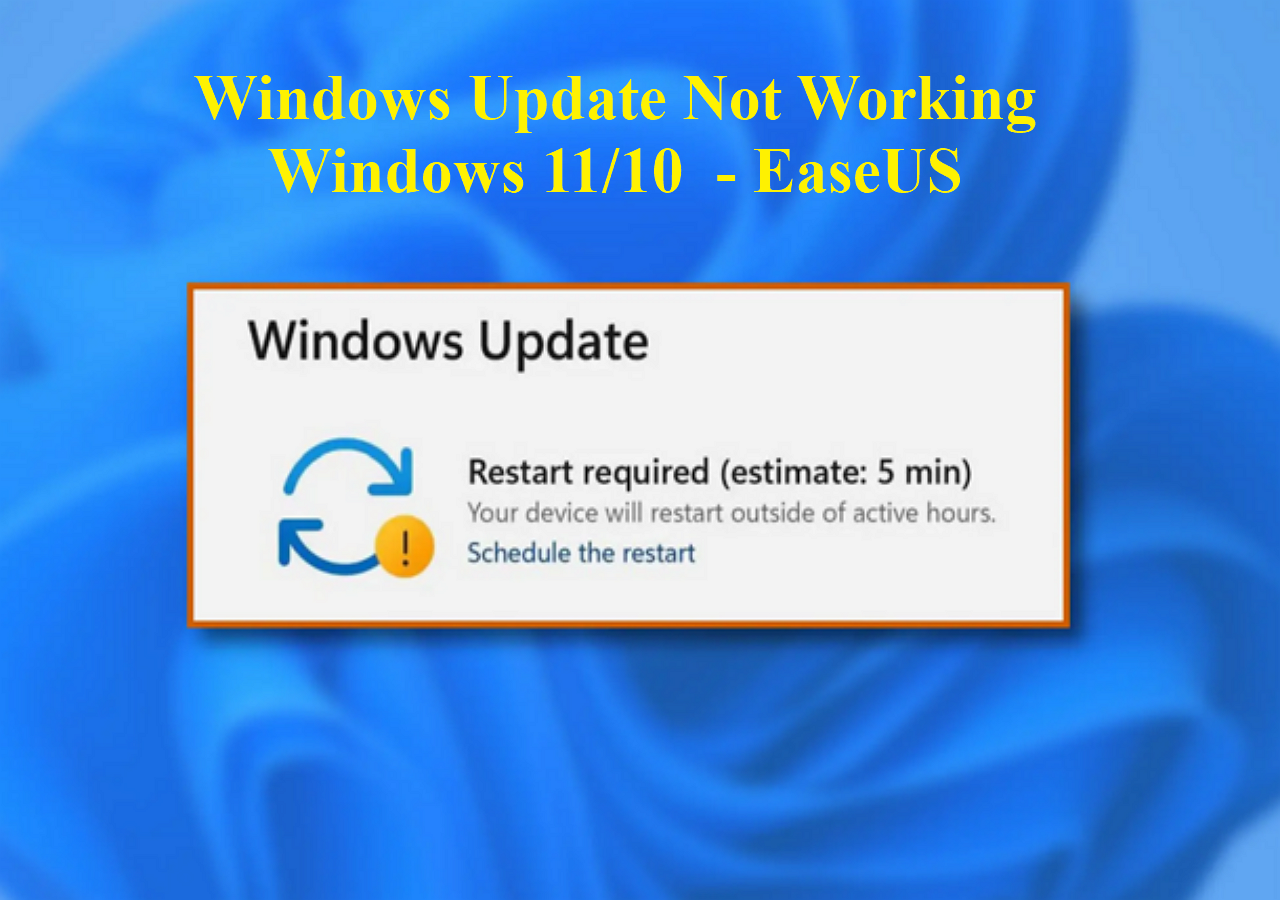
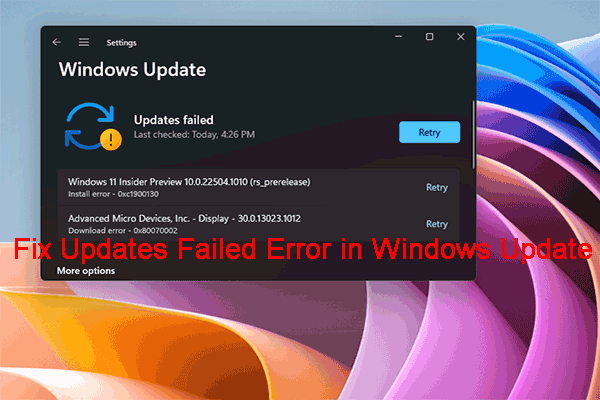
There’s nothing more frustrating than turning on your computer, seeing “Updates are available,” and then realizing nothing actually happens. The download freezes, the installation fails, or the system just keeps showing the same error again and again.
If you’re dealing with Windows Update not working, you’re definitely not alone. This is one of the most common issues Windows users face, and interestingly, it’s not caused by just one problem. It usually happens when several small system issues combine together.
Instead of thinking of it as a single “bug,” it’s better to understand it as a breakdown in communication between your system and Microsoft’s update servers.
What is actually happening when updates fail?
Windows Update Not Working just a simple download button. It’s a background system that constantly checks, downloads, verifies, and installs files while your computer is running.
When it stops working, something in this chain is breaking.
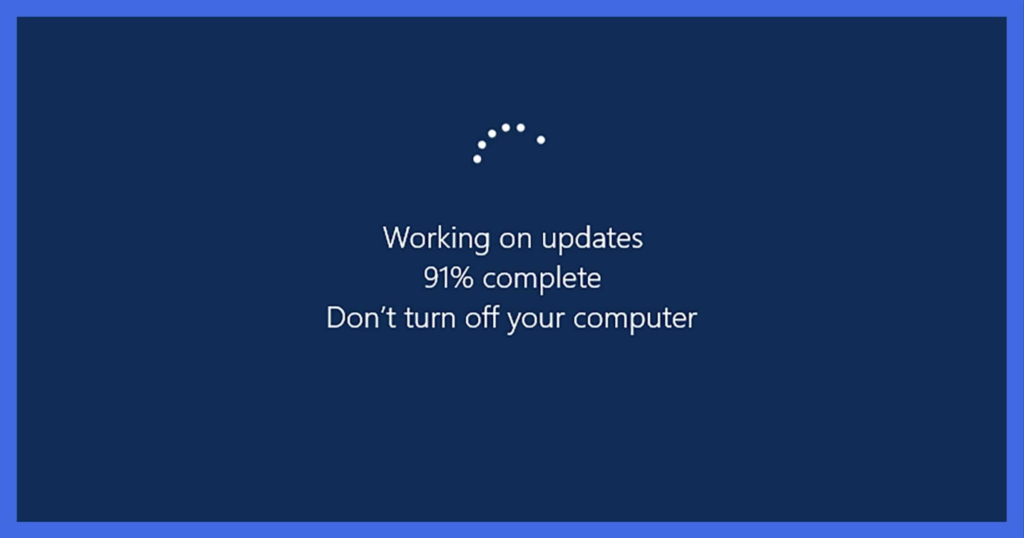
Sometimes the download never completes. Sometimes the files are downloaded but cannot be verified. Other times, the installation process starts but suddenly rolls back everything.
From a user’s point of view, it looks like Windows is “stuck.” But internally, the system is trying and failing repeatedly to complete a secure update cycle.
The real reasons behind Windows Update failures
Most guides online give you a checklist, but real-world issues are usually more complex and less obvious.
Windows Update Not Working One of the most common hidden causes is background services quietly stopping without warning. Windows relies on services like update management and transfer optimization to keep everything running smoothly. If even one of them crashes, updates can silently fail without any clear message.
Another major issue is system clutter. Over time, Windows accumulates temporary files from previous updates. If even a single update was interrupted in the past, it can leave behind corrupted data that interferes with future updates.
Low system resources also play a big role. If your storage is nearly full or your RAM is constantly overloaded, Windows prioritizes basic performance over update installation, which can cause the process to freeze or cancel automatically.
Even something as simple as incorrect system time can break the update process because Microsoft servers rely on secure authentication that checks your device’s clock.
Why restarting your PC sometimes actually works
People often underestimate the power of a simple restart. But in reality, restarting does more than just “refresh” your screen.
It resets background services, clears temporary memory, and stops processes that may be blocking updates. Many Windows update issues are temporary service conflicts, and a restart clears them instantly.
Windows Update Not Working That’s why sometimes the issue disappears after rebooting — not because it was random, but because the system state was reset.
The hidden problem most users don’t notice: update cache corruption
Windows stores downloaded update files in a temporary folder before installing them. Think of it like a staging area.
If those files get corrupted — maybe due to a sudden shutdown, crash, or incomplete download — Windows keeps trying to use them again and again. That’s when you see loops like:
- 0% stuck
- 100% stuck
- “Retrying updates”
Clearing this hidden cache forces Windows to download fresh files, which often fixes the problem immediately.
Security software can silently interfere
Another overlooked reason is antivirus software.
Many security programs scan system-level changes aggressively. When Windows tries to modify core files during an update, the antivirus may mistakenly block it, thinking it’s suspicious behavior.
The frustrating part is that this usually happens silently — no warning, no error message. Just a failed update.
Windows Update Not Working That’s why temporarily disabling third-party security tools is often part of professional troubleshooting.
When system files themselves are damaged
Windows Update Not Working Sometimes the problem is deeper than updates or cache. The core system files of Windows may be corrupted.
This usually happens after:
- sudden shutdowns
- power failures
- incomplete previous updates
- or disk errors
Windows Update Not Working When this happens, Windows cannot properly validate or install new updates because its own internal structure is damaged.
In such cases, repair tools are needed to rebuild missing or broken system components.
A mistake many users make
One of the worst habits users have is forcing shutdowns when updates seem stuck.
It might feel like nothing is happening, but Windows may still be processing files in the background. Interrupting this process repeatedly can actually increase corruption and make the issue worse over time.
How professionals usually approach this problem
Instead of trying random fixes, technicians follow a logical pattern:
Windows Update Not Working First, they check if the issue is service-related or system-related. If it’s service-related, restarting background components usually fixes it.
If that doesn’t work, they move to cache and file integrity checks. Only if those fail do they consider deeper system repair.
This step-by-step approach is important because Windows update problems are layered, not single-cause issues.
When the issue becomes serious
If updates consistently fail over multiple attempts, or the system keeps rolling back changes, that usually indicates deeper system instability.
At that point, simple troubleshooting is no longer enough. The operating system may require repair installation or refresh to restore stability.
How to prevent update problems in the future
Windows Update Not Working Most Windows update issues can actually be prevented with a few simple habits:
Keeping enough free storage space is important because updates need room to unpack and install files.
Avoiding forced shutdowns helps prevent file corruption.
Keeping drivers and system software up to date ensures compatibility with new updates.
And most importantly, letting updates complete without interruption reduces long-term issues significantly.
Final thoughts
A Windows Update not working problem might look complicated, but in reality, it’s usually a chain reaction of small issues rather than a single failure.
Once you understand how services, system files, cache, and security software interact with each other, the problem becomes much easier to handle.
It’s not about one magic fix — it’s about identifying which part of the system is breaking the update chain.
