

Why Windows Updates Get Stuck in the First Place
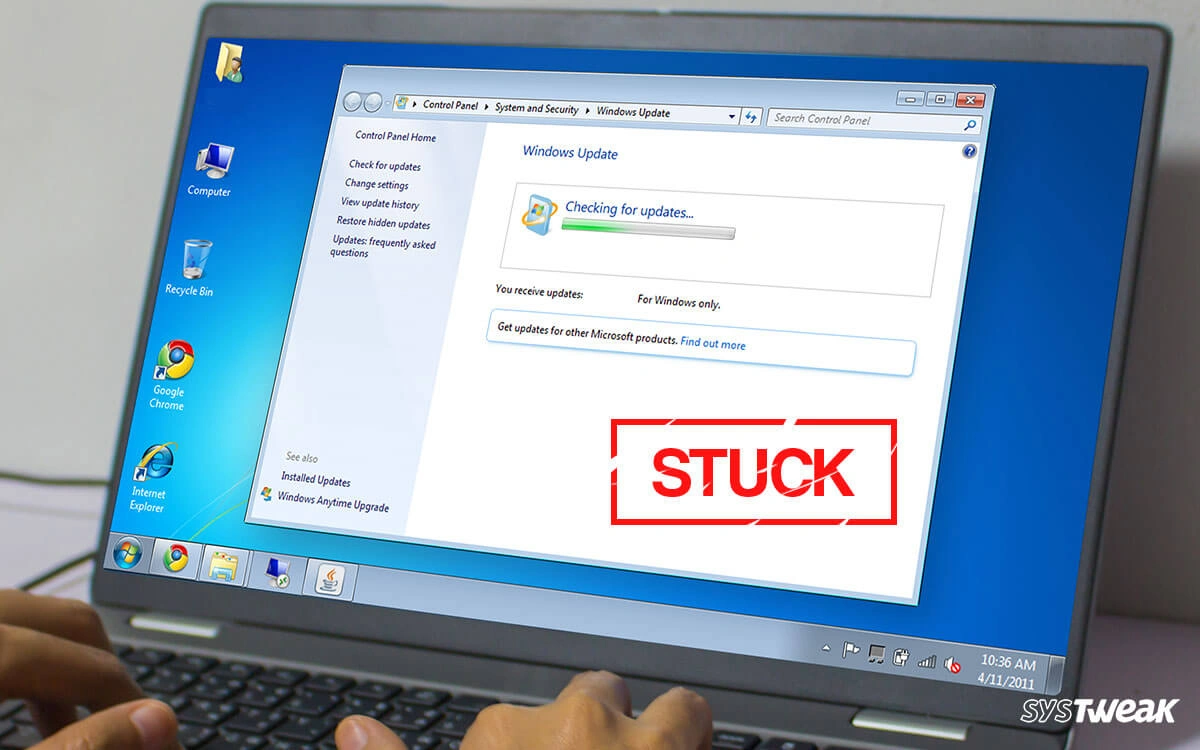
If you’ve ever seen your PC stuck on “Checking for Windows Update StuckFix ” or frozen at a certain percentage, you’re not alone. Many users face this issue across different versions of Windows, including Windows 10 and Windows 11.
The problem behind a Windows Update Stuck Fix situation is usually not one single error. Instead, it is a combination of factors such as system file corruption, slow internet, software conflicts, or incomplete update downloads.
Understanding the root cause is important because it helps you apply the right solution instead of randomly trying fixes that may not work.
The Reality Behind a Frozen Windows Update Screen
When a Windows update freezes, most people assume the system is broken. In reality, Windows is often still working in the background. It might be:
- Downloading large update files
- Verifying system compatibility
- Replacing system files
- Waiting for background services
However, sometimes it truly gets stuck due to errors in the update components. That is when you need a proper Windows Update Stuck Fix approach.
First Signs That Your Windows Update Is Actually Stuck
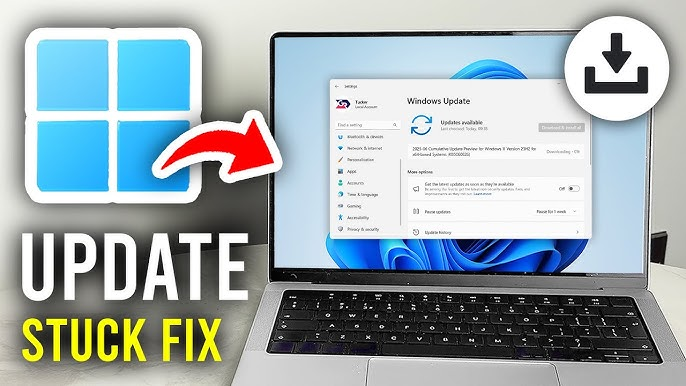
Before applying any fix, it’s important to confirm whether the update is truly stuck or just slow.
You may be dealing with a real issue if:
- Progress remains unchanged for more than 1–2 hours
- Disk usage drops to zero
- No network activity is detected
- System becomes unresponsive
If these symptoms appear, it is safe to proceed with troubleshooting steps.
Basic Restart Method – The Most Underrated Fix
Many users skip this, but restarting the system is often the simplest Windows Update Stuck Fix.
A restart helps because it:
- Clears temporary cache
- Resets update services
- Restarts frozen processes
To do it safely:
- Hold power button for 10 seconds
- Wait a few seconds
- Turn the PC back on
- Check update status again
In many cases, the update resumes normally after reboot.
Checking Internet Connection Stability
A weak or unstable internet connection is one of the most common reasons updates freeze.
Even if your browser works fine, Windows Update may still struggle due to:
- Packet loss
- Slow DNS response
- Background network congestion
For a proper Windows Update Stuck Fix, try:
- Switching to a wired connection
- Restarting your router
- Disabling VPN temporarily
- Testing another network
Stable connectivity often resolves hidden update issues.
Using Windows Update Troubleshooter (Built-In Tool)
Windows includes a built-in tool designed specifically for this problem.
Steps:
- Go to Settings
- Open Update & Security
- Click Troubleshoot
- Select Windows Update
- Run the troubleshooter
This tool automatically detects common issues like:
- Corrupted update cache
- Service misconfiguration
- Missing update components
It is one of the safest and easiest ways to apply a Windows Update Stuck Fix without manual changes.

Clearing Software Distribution Folder
One of the most effective manual methods involves clearing update cache files.
Windows stores temporary update files in the SoftwareDistribution folder. If these files get corrupted, updates freeze.
Steps:
- Open Command Prompt as Administrator
- Stop update services
- Delete SoftwareDistribution contents
- Restart services
This forces Windows to download fresh update files and often resolves stuck updates completely.
This method is widely used by IT professionals for a reliable Windows Update Stuck Fix.
Restarting Windows Update Services Manually
Sometimes the update services themselves stop working properly.
Key services include:
- Windows Update Service
- Background Intelligent Transfer Service (BITS)
If these services freeze, updates will not proceed.
Restarting them can refresh the update process and bring everything back to normal.
This step is often overlooked but is critical for deeper troubleshooting.
Running System File Checker (SFC Scan)
Corrupted system files can silently break Windows Update.
The System File Checker tool scans and repairs damaged files automatically.
When to use it:
- Updates fail repeatedly
- System behaves abnormally
- Updates freeze at same percentage
This method is a more advanced Windows Update Stuck Fix and helps repair hidden system corruption.
Using DISM Tool for Deep Repair
If SFC does not solve the issue, DISM (Deployment Image Servicing and Management) is the next step.
DISM repairs the Windows image itself, which is the core system structure.
This is useful when:
- Windows Update is heavily broken
- System files are missing
- SFC cannot repair errors
Running DISM can take time, but it is one of the most powerful solutions available.
Freeing Up Disk Space Before Updating
Low storage is another silent cause of update failure.
Windows needs space to:
- Download update packages
- Extract files
- Replace system components
If storage is low, updates may freeze or fail.
To fix this:
- Delete temporary files
- Uninstall unused apps
- Clear recycle bin
- Use Disk Cleanup tool
This simple step often completes a Windows Update Stuck Fix without advanced tools.
Disconnecting External Devices
External devices can sometimes interfere with updates.
Examples include:
- USB drives
- External hard disks
- Printers
- USB hubs
Disconnecting them ensures Windows focuses only on system updates without hardware conflicts.
Booting in Safe Mode for Update Recovery
If nothing works, Safe Mode can help isolate the problem.
In Safe Mode:
- Only essential drivers run
- Background apps are disabled
- System runs in minimal state
This environment makes it easier to complete updates or repair system files.
It is often used as a last-stage Windows Update Stuck Fix method.
Resetting Windows Update Components (Advanced Method)
For persistent issues, resetting update components completely may be necessary.
This involves:
- Stopping update services
- Renaming system folders
- Re-registering DLL files
- Restarting services
This method essentially gives Windows Update a fresh start.
It is highly effective but should be used carefully.
Preventing Future Windows Update StuckFix
Fixing the issue is important, but preventing it is even better.
Here are best practices:
- Keep regular free disk space
- Avoid interrupting updates
- Maintain stable internet connection
- Update drivers regularly
- Restart PC occasionally
Following these habits reduces the chances of facing a Windows Update StuckFix situation again.
Final Thoughts :Windows Update StuckFix
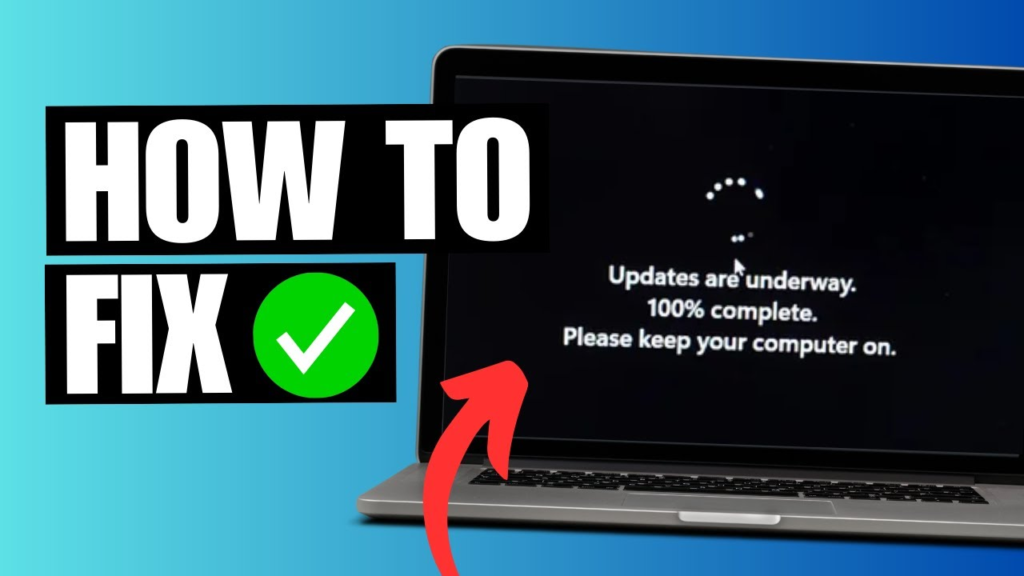
Windows Update StuckFix A stuck Windows update can feel frustrating, especially when you’re unsure whether your system is broken or just slow.
The good news is that most update problems are not permanent. With the right approach—from simple restarts to advanced repair tools—you can usually resolve the issue without reinstalling Windows.
The key is to follow steps in order: start simple, then move to advanced solutions only if needed.
