

Introduction
A laptop stand is a useful accessory for anyone who spends a lot of time working, studying, gaming, or watching videos on a laptop. It lifts your laptop to a more comfortable height, which can help you keep your screen at a better viewing angle and create a cleaner desk setup. A well-designed laptop stand can also leave more space on your desk for a keyboard, mouse, notebook, or other items. Some models are adjustable, while others are foldable and easy to carry, making them suitable for both home and office use.
Another important benefit is airflow. When a laptop sits directly on a desk, the bottom may have less room for air to move. Raising it with a stand can improve laptop cooling and help air circulate around the device. This can be especially useful during long work sessions or demanding tasks. Stands are available in different materials, sizes, and designs, so choosing the right one depends on your laptop and how you use it. In this guide, we will explain the main laptop stand benefits, different types, important features, and simple tips for choosing the right desk accessory for your setup.
Table of Contents
- What Is a Laptop Stand and Why Do You Need One?
- Main Benefits of Using a Laptop Stand
- Types of Laptop Stands and How to Choose
- How to Set Up a Laptop Stand Correctly
- Buying Tips, Common Mistakes, and Expert Advice
- Conclusion
- Frequently Asked Questions
What Is a Laptop Stand and Why Do You Need One?
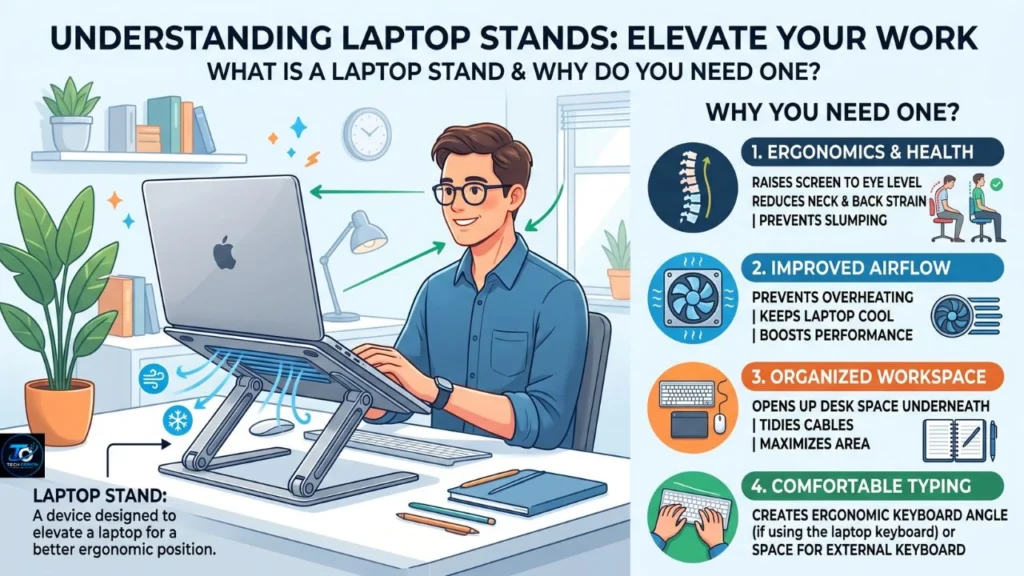
A laptop stand is a platform or holder designed to lift a laptop above the surface of a desk, table, or other workspace. Some models have a fixed height, while others allow you to adjust the height and viewing angle.
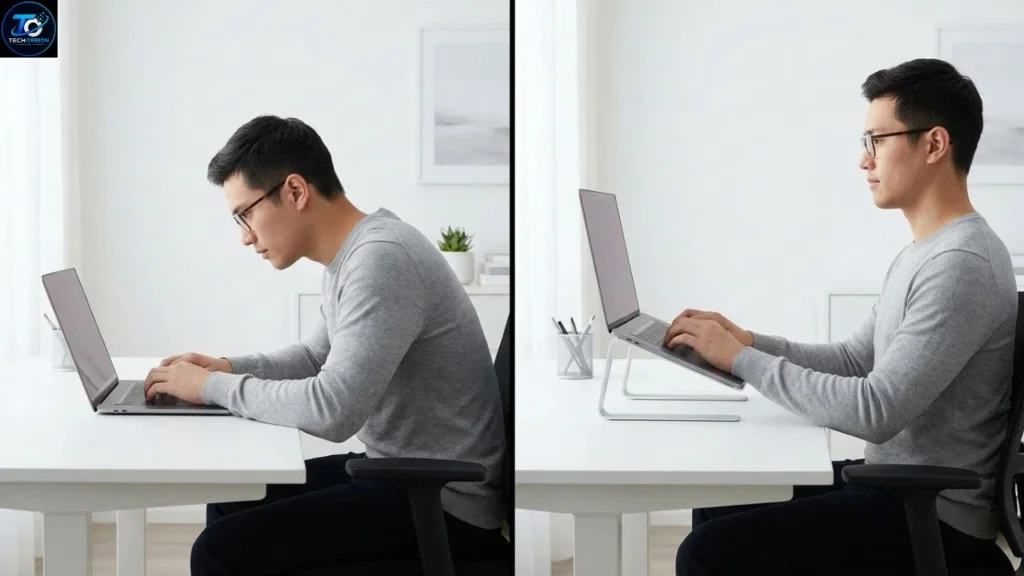
The main reason people use one is to raise the laptop screen. When a laptop sits directly on a desk, you may need to bend your neck downward to see the display. After several hours, this position can become uncomfortable. Raising the screen allows you to bring it closer to a more natural viewing position.
OSHA recommends positioning the top of a computer screen at or slightly below eye level and keeping the screen directly in front of you.
Why Laptop Design Can Be Uncomfortable
A laptop has one important design limitation: its screen and keyboard are connected.
Imagine that you are working at a desk. You raise the laptop high enough so that the screen is comfortable to look at. Now the keyboard may also be too high, forcing your shoulders or wrists into an uncomfortable position.
If you lower the laptop so that the keyboard feels comfortable, the screen becomes low again.
This is why a stand works best when combined with an external keyboard and mouse for long work sessions. Cornell’s ergonomics guidance specifically recommends an external keyboard and/or monitor for people who use laptops for extended periods.
Laptop Stand vs. Laptop Desk
These two products are not exactly the same.
A laptop stand is usually designed to raise or hold the computer on an existing desk. A laptop desk may include a larger surface, legs, a cushion, or a tray designed for use on a bed, sofa, or chair.
For a normal office or study desk, a stand is usually the simpler choice. For occasional work from a sofa or bed, a laptop desk may be more useful.
Main Benefits of Using a Laptop Stand
A good stand can improve your workspace in several ways. Its biggest benefit is not simply making the laptop look better. It can help you create a more comfortable working position.
1. Better Screen Height
The most obvious benefit is raising the display.
Looking down at a laptop for long periods can encourage a forward head position. Raising the screen can make it easier to keep your head and neck in a more neutral position.
OSHA explains that keeping the head balanced and in line with the torso is part of a neutral computer workstation position.
2. More Comfortable Desk Setup
A stand can make a small desk feel more organized. Your laptop gets a dedicated position, while the space underneath may provide room for a keyboard, notebook, or other small items.
This is particularly useful for students and people working from home.
3. Better Ergonomic Setup
Ergonomics means designing a workspace so that your body can work comfortably and naturally.
A stand alone does not create a perfect ergonomic workstation. However, it can help you position the screen more appropriately.
For extended typing, pair the elevated laptop with an external keyboard and mouse. OSHA recommends keeping the keyboard directly in front of you, with relaxed shoulders, elbows close to the body, and wrists generally straight.
4. Improved Video Call Position
Laptop cameras are often positioned near the top of the screen. When the laptop is sitting low on a desk, the camera may point upward toward your face.
Raising the laptop can create a more natural camera position for video meetings.
This can also make it easier to keep your face centered in the frame instead of looking down at the computer.
5. More Desk Space
Some stands create useful space underneath the laptop.
For example, you can place a compact keyboard underneath a raised laptop when you are not typing. You may also be able to store a notebook or other small accessory there.
The amount of usable space depends on the stand’s design and height.
6. Better Airflow Around the Laptop
Some stands lift the bottom of the laptop away from the desk and leave open space underneath.
This can improve airflow around the device compared with placing it directly on a soft surface. However, a stand should not be treated as a guaranteed cooling solution. Cooling depends on the laptop’s vents, fans, room temperature, workload, and stand design.
Never block the laptop’s ventilation openings.
Types of Laptop Stands and How to Choose
Laptop stands come in many designs. The best option depends on how and where you use your computer.
| Type | Best For | Main Advantage | Possible Drawback |
|---|---|---|---|
| Fixed stand | Office desks | Simple and stable | Limited adjustment |
| Adjustable stand | Long work sessions | Height and angle control | Usually costs more |
| Foldable stand | Travel | Easy to carry | May support less weight |
| Portable stand | Students and travelers | Lightweight | May offer less stability |
| Vertical stand | Desk organization | Saves desk space | Laptop stays closed |
| Heavy-duty stand | Large or heavy laptops | Strong support | Larger and heavier |
| Cooling stand | Heat-sensitive workloads | Adds airflow or fans | Fans can create noise |
Fixed Laptop Stands
Fixed models are simple. You place the laptop on them and start working.
They can be a good choice if you always use the same desk and do not need to change the height.
Their main weakness is flexibility. A height that works for one person may not work as well for another.
Adjustable Laptop Stands
Adjustable models allow you to change the height and viewing angle.
They are usually better for people who spend many hours at a desk because you can fine-tune the screen position.
However, do not assume that more adjustment automatically means better quality. Check whether the hinges remain stable after adjustment.
Foldable and Portable Stands
If you travel frequently, a foldable model can be more convenient.
It should be light enough to carry but strong enough to hold your laptop securely. A stand that is extremely thin may be easy to carry but could feel unstable with a heavier laptop.
Vertical Laptop Stands
A vertical stand holds the laptop upright, usually with the screen closed.
This is useful when the laptop is connected to an external monitor, keyboard, and mouse. It can save desk space and create a cleaner setup.
However, it is not suitable if you want to use the laptop’s built-in screen while it is stored vertically.
How to Set Up a Laptop Stand Correctly
Buying a good stand is only half the job. Correct setup matters just as much.
Step 1: Put the Laptop Directly in Front of You
Your laptop screen should normally be centered in front of your body.
Avoid placing it far to one side if you are going to look at it for hours. OSHA notes that keeping the monitor directly in front of you helps avoid prolonged twisting of the head and neck.
Step 2: Raise the Screen
Adjust the stand until you can look at the screen without constantly bending your neck downward.
A useful general target is to have the top of the display at or slightly below eye level. Individual height, screen size, glasses, and working position can change what feels best.
Step 3: Add an External Keyboard and Mouse
This is one of the most important tips.
Once you raise the laptop, the built-in keyboard may become too high for comfortable typing. An external keyboard lets you keep the screen elevated while placing your hands lower on the desk.
An external mouse can also give you more freedom to position your pointing hand comfortably.
Step 4: Check Your Wrists
Your wrists should not be forced sharply upward or downward while typing.
OSHA recommends keeping the hands, wrists, and forearms relatively straight and aligned.
If your keyboard is too high, adjust the chair, desk, keyboard position, or stand rather than simply accepting the uncomfortable position.
Step 5: Check the Viewing Distance
Do not place the screen extremely close to your face.
OSHA gives a general preferred viewing distance of about 20 to 40 inches, although the appropriate distance can vary depending on screen size, text size, vision, and personal comfort.
If text looks too small, increase the text size instead of leaning toward the screen.
Step 6: Check Stability
After adjusting the stand, gently test the laptop.
It should remain stable when you type or touch the trackpad. The laptop should also sit securely on the stand’s support points.
Never use a stand that allows the laptop to slide toward the edge of the desk.
Buying Tips, Common Mistakes, and Expert Advice

When shopping for a laptop stand, focus on practical features rather than appearance alone.
What to Look For
Consider these features before buying:
- Weight capacity: Make sure it can safely support your laptop.
- Adjustability: Useful if different people use the same desk.
- Stability: The stand should not wobble during typing.
- Laptop compatibility: Check the recommended laptop size and dimensions.
- Base size: A wider base generally provides better stability.
- Build quality: Aluminum and strong reinforced materials can offer good durability.
- Portability: Choose a foldable model if you travel often.
- Cable access: Open designs can make charging cables easier to manage.
- Ventilation: Avoid designs that block important laptop vents.
- Surface protection: Look for rubber or silicone contact points to reduce slipping and scratching.
Common Mistakes to Avoid
One common mistake is buying a stand that is too small for the laptop. The computer may extend beyond the support area and become unstable.
Another mistake is raising the laptop without using an external keyboard. The screen may be at a better height, but the keyboard can now be uncomfortable.
People also sometimes place the stand too close to the edge of a desk. This increases the chance of the laptop falling if it is bumped.
Another mistake is assuming that a stand automatically fixes posture. Your chair, desk, keyboard, mouse, lighting, and working habits also matter.
OSHA emphasizes that there is no single workstation arrangement that fits every person. The goal is to create a setup that fits your body and tasks.
Should You Buy a Cheap Laptop Stand?
A cheap stand can be perfectly useful if it is stable, properly sized, and made well.
Price alone does not determine whether a stand is good.
For occasional use, a basic fixed or foldable model may be enough. For someone who works at a laptop for several hours every day, spending more on adjustability and stability can make sense.
Is an Adjustable Model Worth It?
For many regular laptop users, yes.
An adjustable model gives you more control over screen height and angle. This can be especially useful if you change chairs, desks, or working positions.
However, the adjustment mechanism should lock firmly. A stand that slowly drops under the weight of the laptop can become frustrating and unsafe.
A Simple Setup for Students
A student who studies for several hours at a desk can use a raised laptop stand with a separate keyboard and mouse.
The laptop screen can stay elevated while the keyboard remains at a comfortable working height.
This setup also leaves room for books and notebooks.
A Simple Setup for Remote Workers
A remote worker can combine a laptop stand with an external monitor, keyboard, mouse, and comfortable chair.
If the laptop is being used as a second screen, position both displays so that the main screen is directly in front of you. The second screen can sit beside it.
OSHA — Computer Workstations — workplace workstation and ergonomic guidance.
Lighting is important too. Strong reflections or glare can make it harder to see the screen and may encourage uncomfortable positions.
Conclusion
A laptop stand is a small accessory, but it can have a major effect on how you use your computer. Its biggest advantage is raising the screen so you can work with a more natural head and neck position.
For short tasks, a simple fixed stand may be all you need. For long work or study sessions, an adjustable stand paired with an external keyboard and mouse is usually a much better setup.
Remember that the stand is only one part of an ergonomic workspace. Your chair, desk, keyboard, mouse, screen distance, lighting, and working habits all matter. The best setup is the one that keeps your screen easy to view while allowing your arms, wrists, shoulders, and neck to stay relaxed.
Choose a stand based on your laptop’s size, your daily work habits, the amount of adjustment you need, and how often you travel. A stable, properly sized stand can make your desk more comfortable, organized, and practical.
Frequently Asked Questions
1. What is a laptop stand used for?
A laptop stand raises the computer above the desk. It can improve screen height and viewing angle and help create a more comfortable workstation.
2. Is a laptop stand good for posture?
It can help by raising the screen and making it easier to keep your head and neck in a more natural position. However, a stand alone cannot guarantee good posture.
3. Should I use a keyboard with a laptop stand?
Yes, especially if you use the laptop for long periods. Raising the screen can make the built-in keyboard too high, so an external keyboard can create a more comfortable typing position.
4. Can a laptop stand prevent neck pain?
A properly adjusted stand may reduce awkward neck positioning, but it cannot guarantee that you will not experience pain. Your entire workstation and work habits matter.
5. Are adjustable laptop stands better?
They can be better for people who work at a laptop regularly because they allow you to change the height and angle. A fixed stand can still be a good option for a simple, permanent desk setup.
6. Can I use a laptop stand with any laptop?
Most stands support a range of laptop sizes, but you should check the manufacturer’s size and weight recommendations before buying.
7. Does a laptop stand cool the laptop?
Some stands can improve airflow underneath a laptop, especially when they lift it away from the desk. Cooling performance depends on the laptop and stand design. A passive stand should not be considered the same as an active cooling pad.
8. Is a laptop stand useful for gaming?
It can be useful for improving screen position and desk organization. However, gamers should also consider an external keyboard, mouse, cooling needs, and a stable setup.
9. Can I use a laptop stand on a bed?
Some laptop desks are designed for beds, but ordinary desk stands are usually better suited to hard, stable surfaces. Soft surfaces can restrict airflow and make the laptop unstable.
10. What is the best height for a laptop stand?
There is no single height that works for everyone. A good starting point is to position the top of the screen at or slightly below eye level, then adjust it according to your body position and comfort.
