

Keeping your system updated is essential for performance, security, and stability. While most users rely on automatic updates, there are situations where Windows Update Manual Instal becomes necessary. Whether you’re dealing with update errors, slow downloads, or offline systems, manual installation gives you full control.
You’ll learn everything about Windows Update Manual Instal, including methods, tools, troubleshooting tips, and best practices.
What Is Windows Update Manual Instal?
Windows Update Manual Instal refers to the process of downloading and installing updates manually instead of relying on automatic updates built into Microsoft Windows.
This method is commonly used when:
- Automatic updates fail
- Internet connectivity is limited
- You want to install a specific update
- System policies restrict updates
Manual installation ensures you can apply updates precisely when and how you want.
Why Use Windows Update Manual Instal?
1. Fix Update Errors
Sometimes Windows Update fails due to corrupted files or system conflicts. Manual installation bypasses these issues.
2. Faster Installation
Instead of waiting for Windows to download updates slowly, you can directly install them using official packages.
3. Offline Systems
If your PC doesn’t have internet access, manual installation is the only option.
4. Selective Updates
You can install only the updates you need rather than everything available.
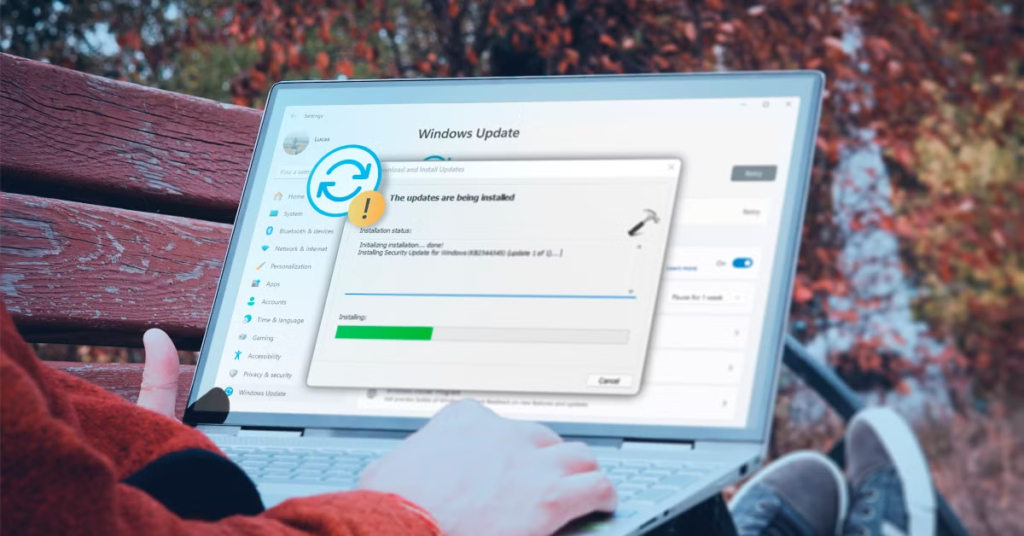
Types of Windows Updates You Can Install Manually
When performing Windows Update Manual Instal, you may encounter different update types:
- Cumulative Updates – Regular security and bug fixes
- Feature Updates – Major upgrades (e.g., Windows 10 to Windows 11)
- Driver Updates – Hardware compatibility improvements
- Security Patches – Critical fixes for vulnerabilities
Understanding these helps you choose the right update package.
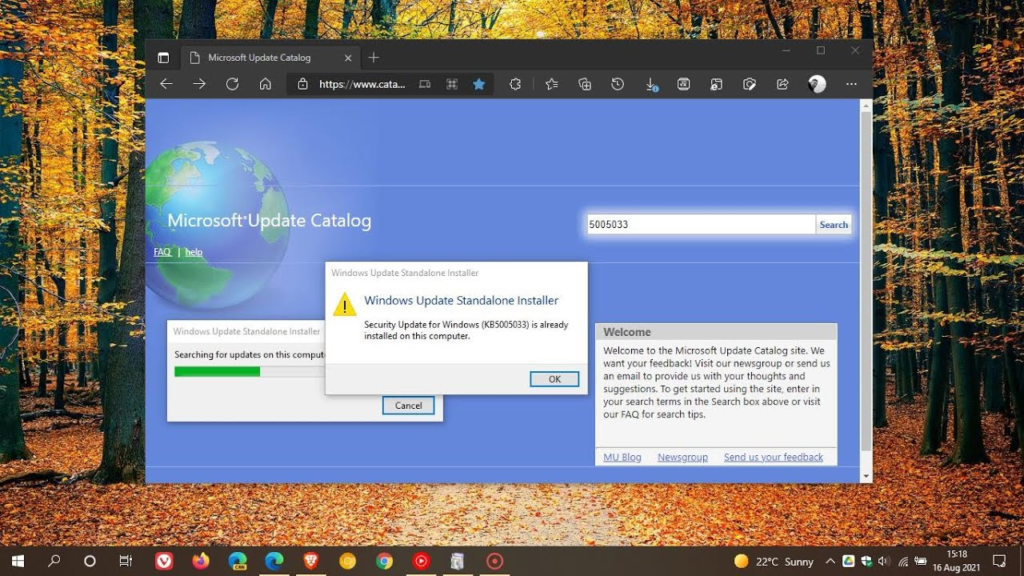
Method 1: Windows Update Manual Instal via Microsoft Update Catalog
The most reliable method is using the Microsoft Update Catalog.
Step-by-Step Guide
- Open your browser and visit the Microsoft Update Catalog
- Search for the update using its KB number (e.g., KB5021234)
- Choose the correct version for your system (32-bit or 64-bit)
- Click Download
- Run the downloaded file (.msu format)
- Follow on-screen instructions
- Restart your system
This method is ideal for precise Windows Update Manual Instal.
Method 2: Windows Update Manual Instal Using Settings
You can also manually trigger updates from the Settings panel in Windows 11 or Windows 10.
Steps:
- Open Settings
- Go to Update & Security
- Click Check for Updates
- Select and install available updates
Although semi-automatic, this still gives you more control compared to background updates.
Method 3: Windows Update Manual Instal Using Windows Installation Assistant
For major updates, Microsoft provides tools like the Windows Installation Assistant.
Steps:
- Download the Installation Assistant
- Run the tool
- Follow instructions to upgrade your system
- Wait for installation to complete
This method is best for upgrading to the latest Windows version.
Method 4: Windows Update Manual Instal via Command Line
Advanced users can install updates using Command Prompt or PowerShell.
Example Command:
wusa.exe updatefile.msu /quiet /norestart
This command installs updates silently without user interaction.
System Requirements for Windows Update Manual Instal
Before starting, ensure your system meets these requirements:
- Enough disk space (at least 10–20 GB free)
- Stable power supply
- Compatible Windows version
- Backup of important data
Skipping these checks can lead to installation failures.
Common Errors in Windows Update Manual Instal (And Fixes)
Error 1: Update Not Applicable
Cause: Wrong version downloaded
Fix: Verify system architecture (32-bit vs 64-bit)
Error 2: Installation Stuck
Cause: Background processes
Fix: Restart system and try again
Error 3: Access Denied
Cause: Lack of admin rights
Fix: Run installer as administrator
Error 4: Corrupted Files
Fix: Use System File Checker:
sfc /scannow
Best Practices for Windows Update Manual Instal
To ensure smooth updates:
- Always download from official sources
- Verify update compatibility
- Backup your system before installing
- Install updates during idle time
- Restart after installation
Following these practices reduces the risk of system issues.
Advantages of Windows Update Manual Instal
- Full control over updates
- Faster installation process
- Ability to fix update issues
- Works offline
- Selective installation
Disadvantages of Windows Update Manual Instal
- Requires technical knowledge
- Time-consuming compared to automatic updates
- Risk of installing wrong updates
- No automatic security patching
Windows Update Manual Instal vs Automatic Updates
| Feature | Manual Instal | Automatic Updates |
|---|---|---|
| Control | High | Low |
| Speed | Faster | Slower |
| Ease of Use | Moderate | Easy |
| Customization | High | Limited |
Manual installation is ideal for advanced users, while automatic updates suit beginners.
When Should You Use Windows Update Manual Instal?
You should consider manual installation when:
- Updates fail repeatedly
- You need a specific patch
- Your system is offline
- You want faster updates
- You manage multiple systems
Security Tips for Windows Update Manual Instal
Security should always be a priority.
- Avoid third-party download sites
- Use official Microsoft sources only
- Keep antivirus enabled
- Verify update file authenticity
Future of Windows Update Systems
Microsoft is continuously improving update mechanisms in modern versions of Windows.
Future updates may include:
- Faster downloads
- Smaller update sizes
- Better error handling
- AI-based update management
However, Windows Update Manual Instal will always remain important for advanced control.
Final Thoughts
Windows Update Manual Instal is a powerful method for users who want complete control over their system updates. While it requires some technical understanding, it offers flexibility, speed, and reliability.
By following the steps and best practices outlined in this guide, you can safely install updates and keep your system running smoothly.
FAQs About Windows Update Manual Instal
What is Windows Update Manual Instal?
It is the process of manually downloading and installing Windows updates instead of using automatic updates.

Is Windows Update Manual_Instal safe?
Yes, as long as you download updates from official Microsoft sources.
Can I install updates offline?
Yes, manual installation allows offline updates using downloaded files.
Why do updates fail automatically?
Common reasons include corrupted files, network issues, or system conflicts.
Do I need technical skills?
Basic knowledge is helpful, but step-by-step guides make it easy for beginners.
