

Meta Description
Learn how to speed up PyCharm on low-end PC step-by-step tips for 2026. Improve performance, reduce lag, and make coding smoother with easy optimization tricks.
INTRODUCTION
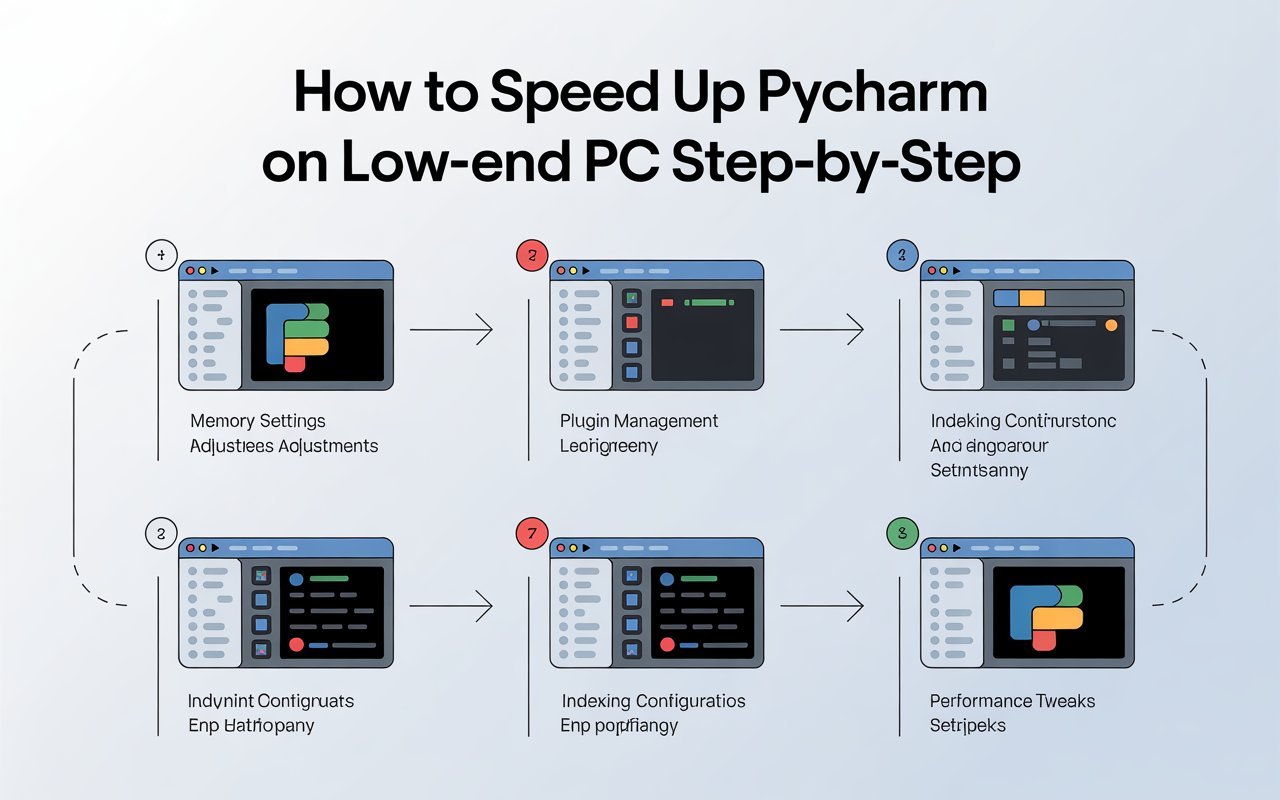
How to Speed Up PyCharm on Low-End PC Step-by-Step (2026 Guide) is a common concern for developers who face slow performance while coding on limited hardware. PyCharm is a powerful IDE, but it can feel heavy on low-end systems if not properly optimized. To improve speed, start by disabling unnecessary plugins from the settings menu, as extra plugins consume memory and slow down performance. Next, increase the IDE memory allocation by editing the VM options file, which helps PyCharm run more smoothly during large projects. You should also enable power save mode when working on simple tasks to reduce background processes. Another useful step is to exclude heavy folders like virtual environments or large project directories from indexing. Keeping your PyCharm updated to the latest version also ensures better optimization and bug fixes. Additionally, reducing real-time code analysis features can improve responsiveness on weaker systems. Closing unused tabs and limiting background applications further boosts overall performance. Using a lightweight theme and disabling animations can also make the IDE feel faster. By following these step-by-step optimizations, even a low-end PC can run PyCharm more efficiently and provide a smoother coding experience in 2026.
If you want more options, check our guide on How to Run Python Project in PyCharm Easily
Why PyCharm Becomes Slow on Low-End PCs
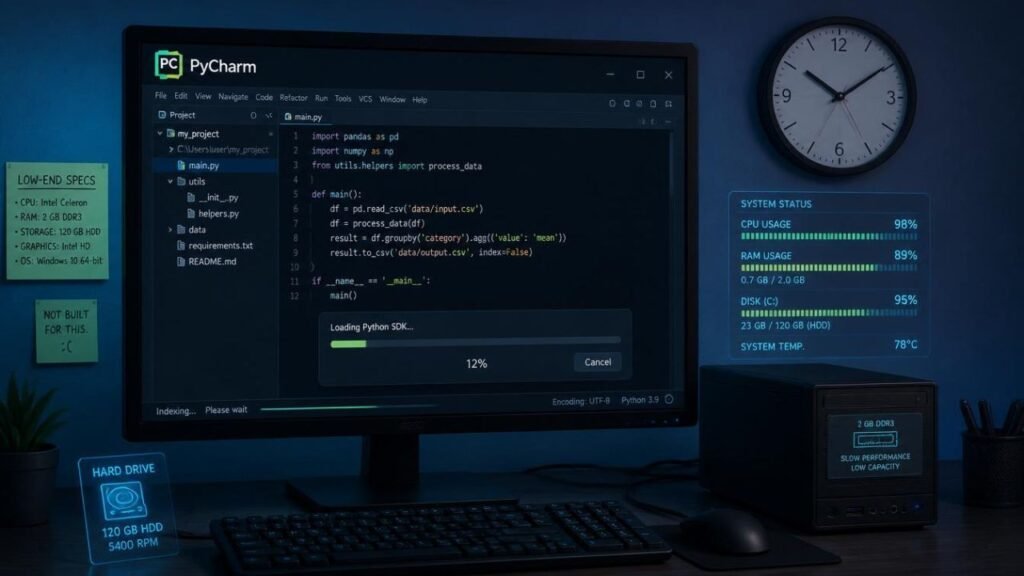
How to Speed Up PyCharm on Low-End PC Step-by-Step PyCharm can become slow on low-end PCs mainly because it is a feature-rich and resource-heavy IDE designed for professional development. When you run PyCharm, it performs multiple background processes such as code indexing, real-time error checking, and intelligent code completion. These features require a good amount of RAM and CPU power, which older or budget systems often struggle to handle. Another common reason is insufficient memory allocation, as the default settings may not be optimized for weaker hardware. Large projects also increase the load because PyCharm continuously scans files and dependencies, which can cause lag or freezing. Additionally, too many installed plugins can further slow down the IDE by consuming extra system resources. Background applications running alongside PyCharm, such as browsers or heavy software, can also reduce available memory and make performance worse. Even antivirus scans can sometimes interfere with file indexing, adding extra delay. On low-end PCs with limited storage and slower HDDs instead of SSDs, loading times become even longer. In short, PyCharm becomes slow not because it is poorly designed, but because its advanced features demand more system power than entry-level computers can provide.
Step-by-Step Guide to Speed Up PyCharm on Low-End PC
Step-by-Step Guide to Speed Up PyCharm on Low-End PC is very helpful for users who face lag and slow performance while coding. First, open PyCharm settings and disable unnecessary plugins to reduce memory usage. Next, go to the VM options and increase the allocated RAM so the IDE can run more smoothly. Then enable Power Save Mode when working on simple tasks to stop heavy background analysis. After that, exclude large folders like virtual environments, node_modules, or big project directories from indexing, which significantly improves speed. You should also turn off unnecessary animations and reduce real-time inspections for better responsiveness. Keeping only essential tabs open helps free up system resources. Make sure your PyCharm is updated to the latest version because updates often include performance improvements. How to Speed Up PyCharm on Low-End PC Step-by-Step. Closing background applications like browsers or heavy software also helps improve speed. Finally, using an SSD instead of an HDD, if possible, can drastically reduce loading time and make PyCharm much faster overall on low-end PCs.
Bonus Tips for Extreme Low-End PCs (4GB RAM Users)
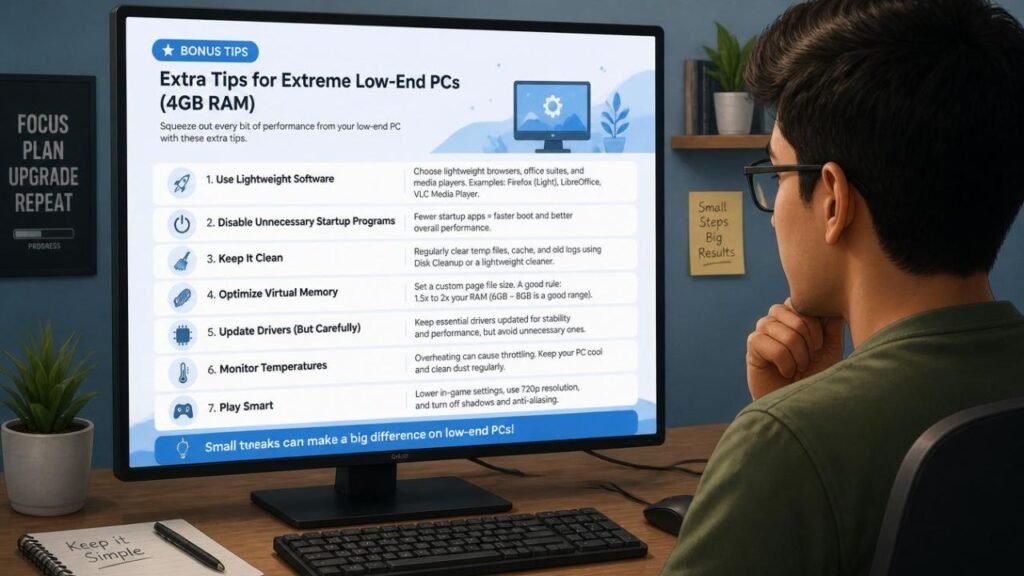
How to Speed Up PyCharm on Low-End PC Step-by-Step. Bonus Tips for Extreme Low-End PCs (4GB RAM Users) are especially useful for users who struggle with very slow performance while running PyCharm. If you have only 4GB RAM, the first step is to close all unnecessary background applications before opening PyCharm to free up memory. You should also use PyCharm Community Edition instead of Professional because it is lighter and consumes fewer resources. Disabling all non-essential plugins can also make a big difference in speed. Try using a simple and lightweight theme, as visual effects and animations can slightly affect performance. It is also recommended to reduce the project size and avoid opening multiple large projects at the same time. How to Speed Up PyCharm on Low-End PC Step-by-Step. Increasing virtual memory (page file) in Windows settings can help when RAM is fully used. Another smart tip is to avoid running browsers with too many tabs while coding. If possible, store projects on an SSD instead of an HDD for faster loading. These small optimizations can significantly improve PyCharm’s performance on extremely low-end PCs and make coding much more manageable.
Common Mistakes That Slow Down PyCharm
How to Speed Up PyCharm on Low-End PC Step-by-Step. Common Mistakes That Slow Down PyCharm often happen when users are not aware of how resource-heavy the IDE can be. One major mistake is installing too many unnecessary plugins, which increases memory usage and slows performance. Another common issue is opening very large projects without excluding heavy folders like virtual environments or node_modules from indexing. How to Speed Up PyCharm on Low-End PC Step-by-Step. Many users also keep multiple tabs and files open at the same time, which puts extra load on the system. Not increasing RAM allocation in VM settings is another mistake that affects speed. Running PyCharm alongside heavy applications or browsers with many tabs can also significantly reduce performance on low-end PCs.
PyCharm vs Alternatives for Low-End PCs
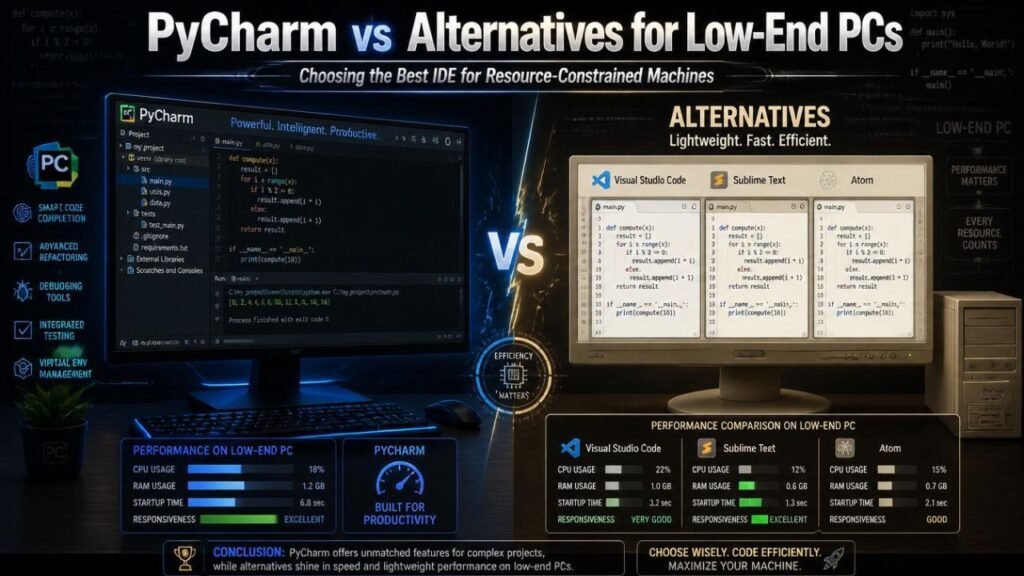
How to Speed Up PyCharm on Low-End PC Step-by-Step. PyCharm vs Alternatives for Low-End PCs is an important comparison for developers who want smooth performance on weaker systems. PyCharm is a powerful IDE, but it can be heavy on low-end PCs due to its advanced features and higher resource usage. In contrast, alternatives like Visual Studio Code or Sublime Text are much lighter and faster, making them better choices for systems with limited RAM and CPU power. VS Code, in particular, offers flexibility through extensions while still maintaining good performance. How to Speed Up PyCharm on Low-End PC Step-by-Step. However, PyCharm provides a more complete and integrated Python development experience. In short, if performance is your priority, alternatives are better, but if you need advanced features, PyCharm is the stronger option.
Final Thoughts
How to Speed Up PyCharm on Low-End PC Step-by-Step. Final Thoughts: Speeding up PyCharm on a low-end PC is completely possible with the right optimizations and settings. While the IDE is known for its powerful features, it does not have to feel slow or frustrating on older hardware. Simple changes such as disabling unnecessary plugins, reducing background processes, increasing memory allocation, and keeping projects organized can make a noticeable difference in performance. Users with limited RAM can benefit from additional tweaks to reduce resource usage even further. Ultimately, the goal is to create a smoother coding experience without sacrificing productivity. With a few adjustments, PyCharm can remain a reliable and efficient tool even on budget-friendly computers.
FAQs
1. Why is PyCharm so slow on my low-end PC?
PyCharm can be slow because it uses significant RAM and CPU resources for features like code indexing, auto-completion, and real-time error checking.
2. Can PyCharm run on a 4GB RAM computer?
Yes, PyCharm can run on 4GB RAM, but performance may improve if you optimize settings and close unnecessary background applications.
3. Does PyCharm Community Edition run faster than Professional Edition?
Generally, yes. Community Edition is lighter because it includes fewer advanced features and background services.
4. How can I make PyCharm start faster?
Disable unused plugins, reduce startup tasks, keep PyCharm updated, and store your projects on an SSD if possible.
5. Which plugins should I disable to improve performance?
You should disable plugins that you do not actively use, especially those related to languages or frameworks not required for your projects.
6. Is increasing RAM allocation safe in PyCharm?
Yes, increasing RAM allocation is safe as long as your computer has enough available memory to support it.
7. Does an SSD improve PyCharm performance?
Yes, an SSD can significantly reduce project loading times, indexing delays, and overall responsiveness.
8. Should I exclude folders from indexing?
Yes, excluding folders like virtual environments, cache folders, and large dependency directories can improve IDE performance.
9. Is VS Code faster than PyCharm on low-end PCs?
In most cases, VS Code is lighter and faster, but PyCharm offers more built-in Python development tools and features.
10. What is the best way to optimize PyCharm for low-end hardware?
The best approach is to disable unnecessary plugins, increase memory allocation, exclude large folders from indexing, and keep background applications to a minimum.
