

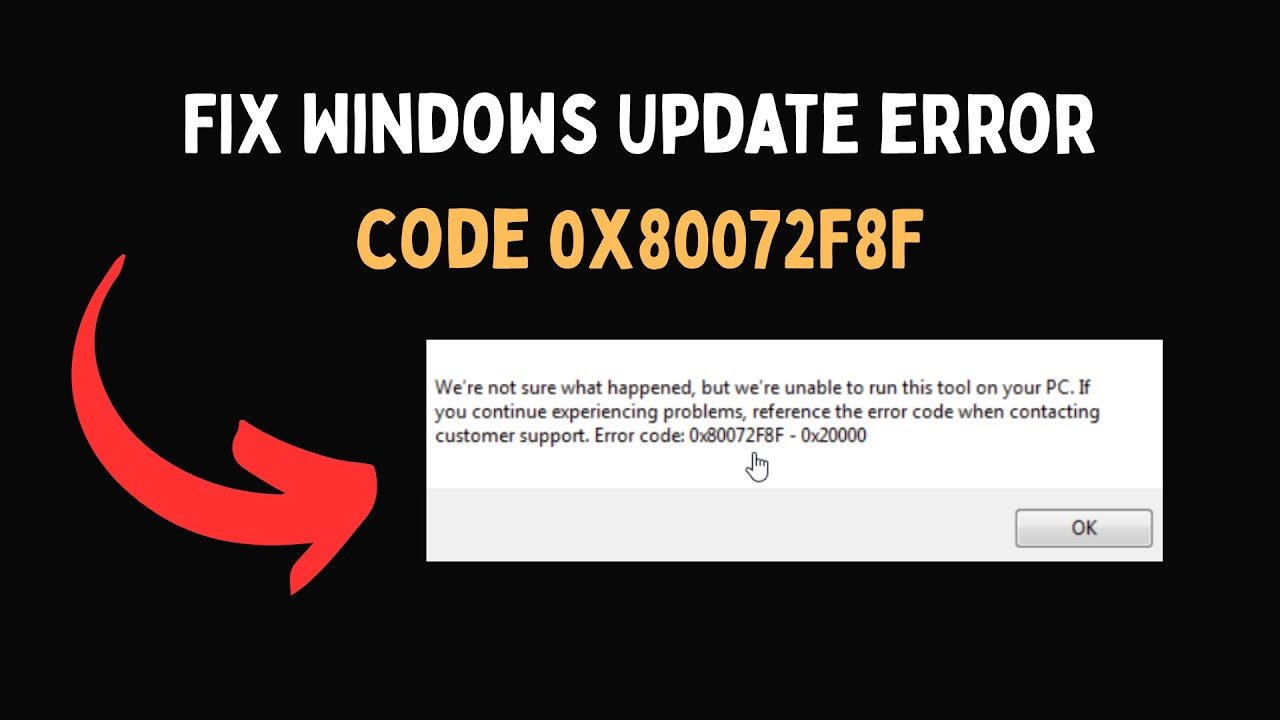
Keeping your system updated is essential for performance, security, and stability. However, many users encounter frustrating issues known as Windows Update Error Codes, which can interrupt updates and cause confusion.
These error codes may look complicated at first, but they actually provide clues about what went wrong. In this comprehensive guide, you’ll learn what these codes mean, why they appear, and—most importantly—how to fix them effectively.
Why Windows Update Error Codes Appear in the First Place
Before jumping into solutions, it’s important to understand why Windows Update Error Codes occur.
Most update failures happen due to:
- Corrupted system files
- Poor internet connection
- Insufficient disk space
- Driver conflicts
- Antivirus interference
- Windows Update service issues
Each error code is tied to a specific issue, which helps in troubleshooting.
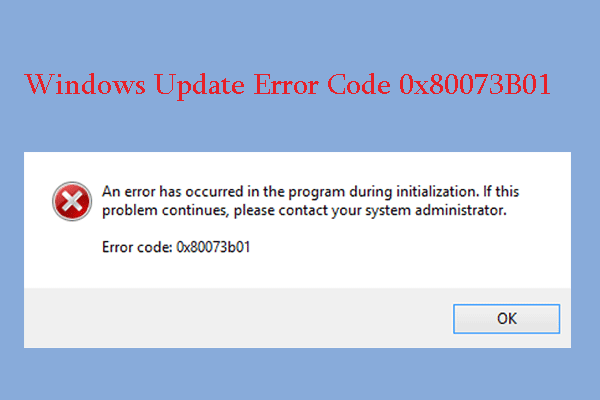
Most Common Windows Update Error Codes and Their Meaning
Let’s break down some of the most frequently seen Windows Update Error Codes and what they actually mean.
1. Error Code 0x80070057
This error usually indicates:
- Incorrect system configuration
- Corrupted update files
2. Error Code 0x80070422
This occurs when:
- Windows Update service is disabled
3. Error Code 0x800f081f
This is related to:
- Missing .NET Framework files
4. Error Code 0x8024402c
This error is often caused by:
- Network or proxy issues
5. Error Code 0x80070020
This happens when:
- Another program is interfering with updates
Understanding these common Windows Update Error Codes helps you quickly identify the root cause.
Quick Fixes for Windows Update Error Codes (Basic Methods)
Before trying advanced solutions, start with these simple fixes.
Restart Your Computer
Sometimes, a simple reboot can resolve temporary glitches causing Windows Update Error Codes.
Check Internet Connection
Ensure:
- Stable Wi-Fi or Ethernet connection
- No VPN interference
Free Up Disk Space
Updates require sufficient storage. Delete unnecessary files if needed.
Using Windows Troubleshooter for Windows Update Error Codes
Windows includes a built-in troubleshooter that can automatically detect and fix issues.
Steps:
- Open Settings
- Go to Update & Security
- Click Troubleshoot
- Select Windows Update
- Run the troubleshooter
This tool can resolve many Windows Update Error Codes without manual effort.
Advanced Fixes for Persistent Windows Update Error Codes
If basic fixes don’t work, try these advanced methods.
Reset Windows Update Components
This is one of the most effective ways to fix stubborn Windows Update Error Codes.
Steps:
- Open Command Prompt as Administrator
- Stop services:
- wuauserv
- bits
- cryptsvc
- Rename folders:
- SoftwareDistribution
- Catroot2
- Restart services
This process refreshes update components and clears corrupted data.
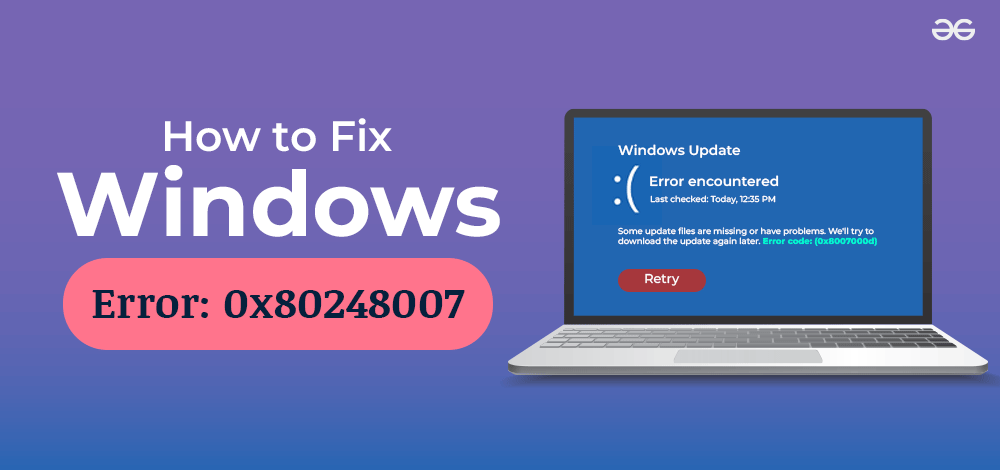
Run System File Checker (SFC Scan)
Corrupted system files often trigger Windows Update Error Codes.
Command:
sfc /scannow
This tool scans and repairs damaged system files automatically.
Use DISM Tool
If SFC doesn’t fix the issue, use the DISM tool.
Commands:
DISM /Online /Cleanup-Image /RestoreHealth
This helps repair deeper system issues causing update failures.
Fixing Specific Windows Update Error Codes Step-by-Step
Let’s go deeper into targeted fixes.
Fix for Error Code 0x80070422
Solution:
- Enable Windows Update service:
- Press Win + R
- Type services.msc
- Find Windows Update
- Set startup type to Automatic
Fix for Error Code 0x800f081f
Solution:
- Install missing .NET Framework manually
- Use DISM with source files
Fix for Error Code 0x8024402c
Solution:
- Disable proxy settings
- Reset network configuration
Fix for Error Code 0x80070020
Solution:
- Temporarily disable antivirus
- Close background applications
How Antivirus Software Affects Windows Update Error Codes
Many users don’t realize that antivirus programs can block updates.
Common Issues:
- Blocking update files
- Interfering with system processes
Solution:
- Temporarily disable antivirus
- Add Windows Update to exceptions
This can instantly resolve certain Windows Update Error Codes.
Role of Drivers in Windows Update Error Codes
Outdated or incompatible drivers can also cause update failures.
Fix:
- Update drivers manually
- Use Device Manager
- Download drivers from official manufacturer websites
Keeping drivers updated reduces the chances of encountering Windows Update Error Codes.
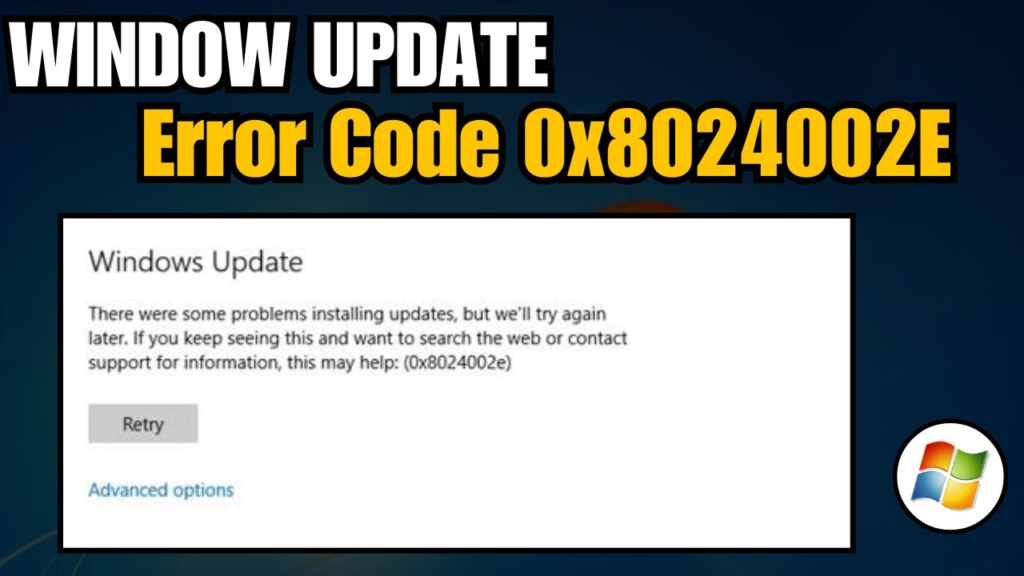
Sometimes the problem isn’t your system—it’s your network.
Common Causes:
- DNS issues
- Firewall restrictions
- Proxy misconfiguration
Fix:
- Reset network settings
- Use Google DNS (8.8.8.8 / 8.8.4.4)
- Disable VPN
How to Prevent Windows Update Error Codes in the Future
Prevention is always better than fixing problems repeatedly.
Best Practices:
- Keep system updated regularly
- Avoid interrupting updates
- Maintain sufficient disk space
- Use reliable antivirus software
- Regularly scan for malware
Following these steps minimizes the chances of facing Windows Update Error Codes again.
When to Use Windows Update Assistant
If updates keep failing, you can use the Windows Update Assistant.
Benefits:
- Direct update installation
- Bypasses common errors
- Simple and user-friendly
This tool is especially useful when dealing with persistent Windows Update Error Codes.
Clean Boot Method to Fix Windows Update Error Codes
A clean boot starts Windows with minimal services.
Steps:
- Open System Configuration
- Disable all non-Microsoft services
- Restart your PC
This helps identify software conflicts causing update errors.
Offline Update Method (Manual Installation)
If everything else fails, you can manually install updates.
Steps:
- Visit Microsoft Update Catalog
- Search for update code
- Download and install manually
This method bypasses many Windows Update Error Codes.
Understanding Error Logs for Better Troubleshooting
Windows logs provide detailed insights into update failures.
How to Access Logs:
- Use Event Viewer
- Check WindowsUpdate.log
Reading logs can help advanced users diagnose specific Windows Update Error_Codes.
Final Thoughts on Windows Update Error_Codes
Dealing with Windows Update Error_Codes can be frustrating, but they are not impossible to fix. Each error code provides a clue, and with the right approach, you can resolve most issues quickly.
Start with basic troubleshooting, move to advanced fixes if needed, and always maintain your system properly to avoid future errors.
With the methods covered in this guide, you should be able to handle almost any Windows update issue confidently.
