

Introduction
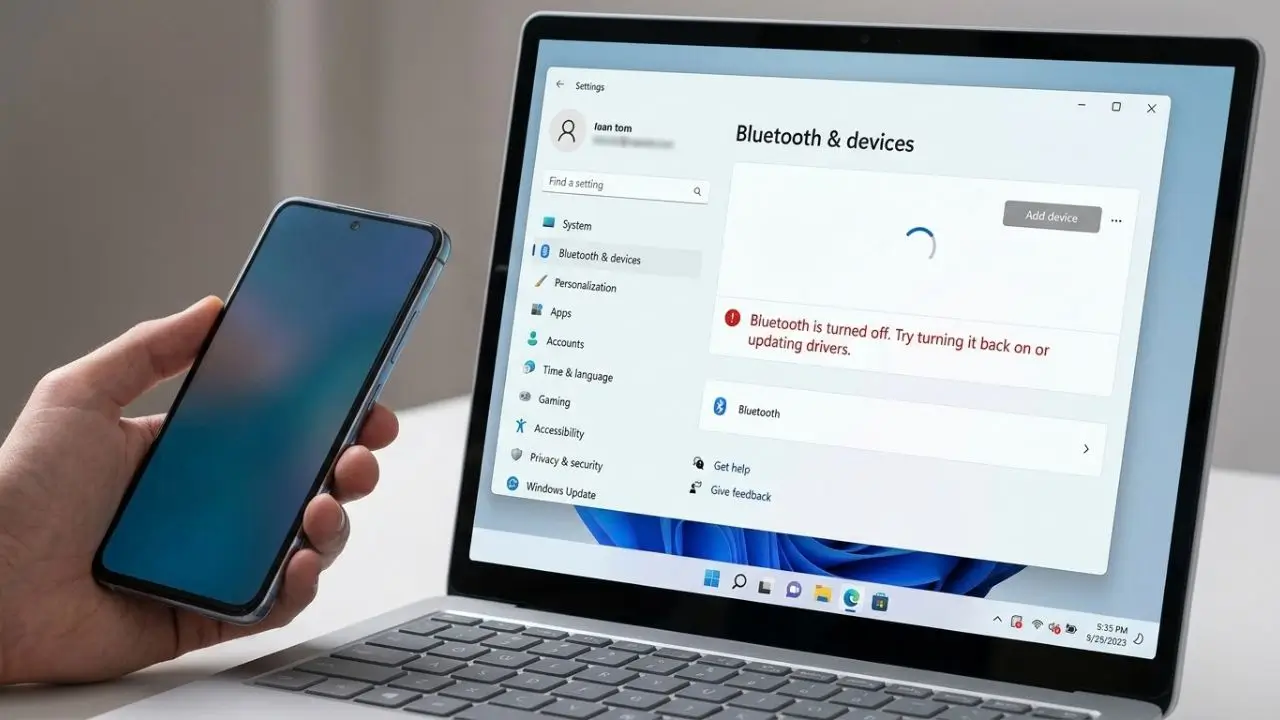
It can be quite frustrating when Windows 11 Bluetooth Not Working. Headphones might suddenly fail to be detected, a Bluetooth mouse won’t connect, or the Bluetooth option might even disappear from Windows Settings entirely. It is particularly annoying when the device was working perfectly just yesterday.
A faulty Bluetooth chip isn’t always the cause of such issues. Often, the problem stems from incorrect settings, a faulty driver, a disabled service, or an existing connection to another device. Bluetooth devices may also fail to be detected correctly for a time following a Windows update.
The good news is that many of these issues can be resolved without requiring advanced technical knowledge. In this guide, we will walk you through the most common causes step by step, starting with simple solutions before moving on to more advanced Windows settings.
1. Check Bluetooth settings and basic connections
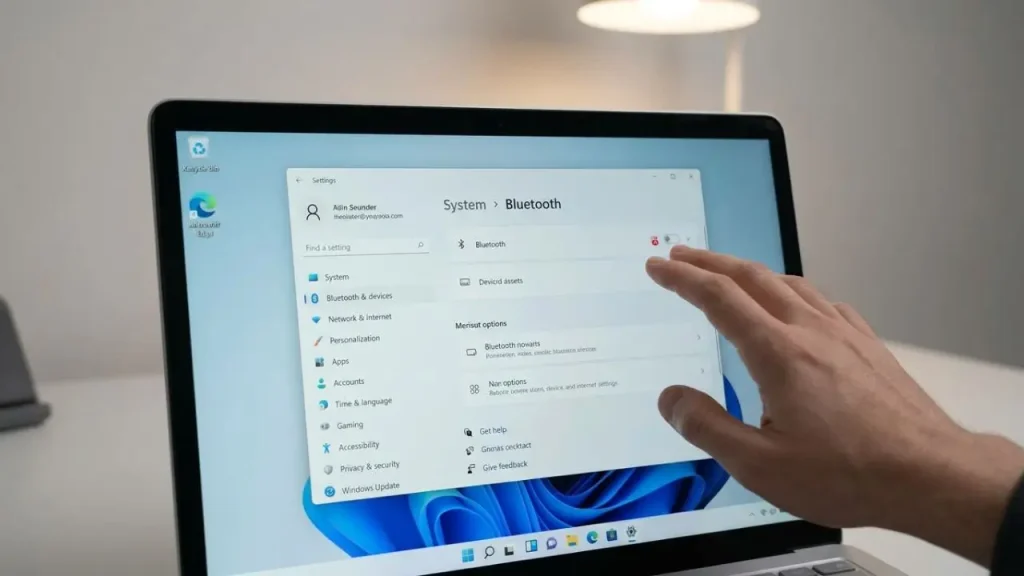
Before reinstalling drivers or changing Windows settings, you should rule out the simplest causes. First, open **Settings > Bluetooth & devices** and check whether Bluetooth is actually turned on. If the toggle is off, Windows cannot search for or connect to wireless devices.
Sometimes, simply restarting the Bluetooth function helps. Turn Bluetooth off, wait a few seconds, and then turn it back on. You can then try connecting your device again. If you are using a laptop, it is also worth checking whether Airplane mode has been accidentally enabled; on some devices, Airplane mode can completely disable wireless communication.
Preparing the Bluetooth device correctly
Not every connection issue is caused by Windows. Bluetooth headphones, speakers, keyboards, and mice usually need to be in pairing mode before Windows can detect them. With many headphones, this mode is activated by pressing and holding the Bluetooth or power button.
Battery level also plays a role. A device with a nearly depleted battery might turn on but fail to establish a stable connection. Therefore, fully charge the accessory and then turn it on again.
Issues can also arise if the device is already connected to a smartphone, tablet, or another computer. Some Bluetooth devices can only maintain one active connection at a time. Try disconnecting the accessory from other devices and then restart the search in Windows 11.
Remove and reconnect the Bluetooth device
If the device appears in Windows but fails to connect, the saved pairing information might be faulty. Go to **Settings > Bluetooth & devices**, select the device in question, and remove it. Then, restart your computer and put the Bluetooth accessory back into pairing mode.
Afterward, you can search for the device by selecting **Add device > Bluetooth**. If Windows detects it now, a new connection will be established. This simple method is particularly helpful for headphones and speakers that appear in the list but fail to connect.
2. Check and update Bluetooth drivers in Windows 11
A faulty or outdated Bluetooth driver is a common cause of connection issues. The driver facilitates communication between Windows 11 and the computer’s Bluetooth adapter. If this driver is corrupted or stops working correctly following a Windows update, Bluetooth functionality may suddenly fail.
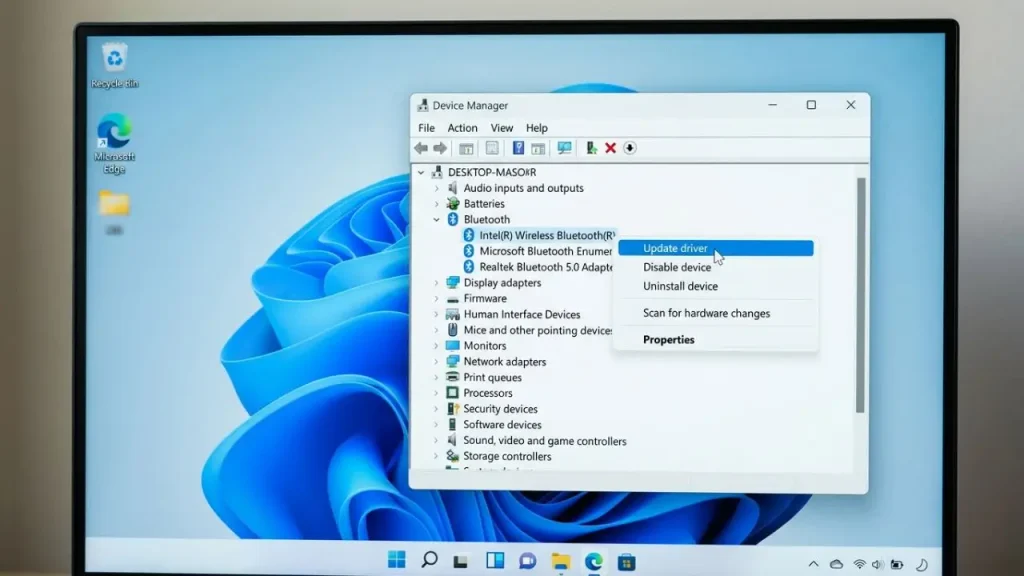
Open **Device Manager** by right-clicking the **Start** button and selecting the corresponding entry. Look for **Bluetooth** in the list; your Bluetooth adapter should appear under this section. The exact name depends on the manufacturer and might list Intel, Realtek, Qualcomm, or another provider.
Update driver
Right-click the Bluetooth adapter and select “Update driver.” Windows can then automatically search for an available driver. If a new driver is found, Windows should install it.
However, Windows does not always find the latest driver. Especially with laptops, it is therefore advisable to also check the manufacturer’s support page. They often provide Bluetooth and Wi-Fi drivers that have been specifically tested for that particular model.
This is particularly relevant if Bluetooth stops working after a fresh installation of Windows 11 or a major system update. While a generic driver might work, an official driver from the laptop or motherboard manufacturer is often better optimized for the specific hardware installed.
Reinstall Bluetooth driver
If the adapter appears in Device Manager but still isn’t working, reinstalling it might help. To do this, right-click the Bluetooth adapter and select “Uninstall device.” The options displayed may vary slightly depending on the version of Windows.
After restarting, Windows often automatically detects the hardware and reinstalls the necessary driver. If this does not happen, you may need to manually install the correct driver from the manufacturer.
This method is particularly useful if a yellow warning icon appears next to the Bluetooth adapter in Device Manager. This icon can indicate that Windows has detected a problem with the device or its driver.
3. Using Bluetooth Services and the Windows Troubleshooter
Bluetooth relies on more than just a functioning adapter and driver; Windows services running in the background are also responsible for communicating with Bluetooth devices. If one of these services isn’t working correctly, Bluetooth can cause issues even if the hardware is installed properly.
One option is to check the Windows services. Press the Windows key + R, type `services.msc`, and press Enter. Then, look for Bluetooth-related services. The exact names may vary depending on your Windows version and installed hardware.
Restarting the Bluetooth Service
If a relevant Bluetooth service is running, you can try restarting it. Right-click the service and select **Restart**. If it isn’t currently active, the **Start** option might be available instead.
After restarting the service, try connecting your Bluetooth device again. This method is particularly useful when Bluetooth is present but device discovery isn’t working correctly.
It is also a good idea to restart your computer after making changes to services. This reloads various Windows components and clears up any potential temporary errors.
Trying the Windows Troubleshooter
Windows 11 includes built-in tools to help detect specific hardware and connection issues. Open **Settings** and go to **System** > **Troubleshoot** > **Other troubleshooters**. The available options may look slightly different depending on your installed version of Windows 11.
If a Bluetooth troubleshooter is available, you can run it. Windows will check specific settings and attempt to automatically fix any issues it detects.
If other Windows errors occur alongside Bluetooth issues, our Windows Errors Fix Guide 2026 can offer further practical solutions.
The automatic troubleshooter cannot resolve every error. However, it is worth a try, as it can identify common configuration issues without requiring you to manually change various system settings.
4. Check Windows updates, power management, and hardware
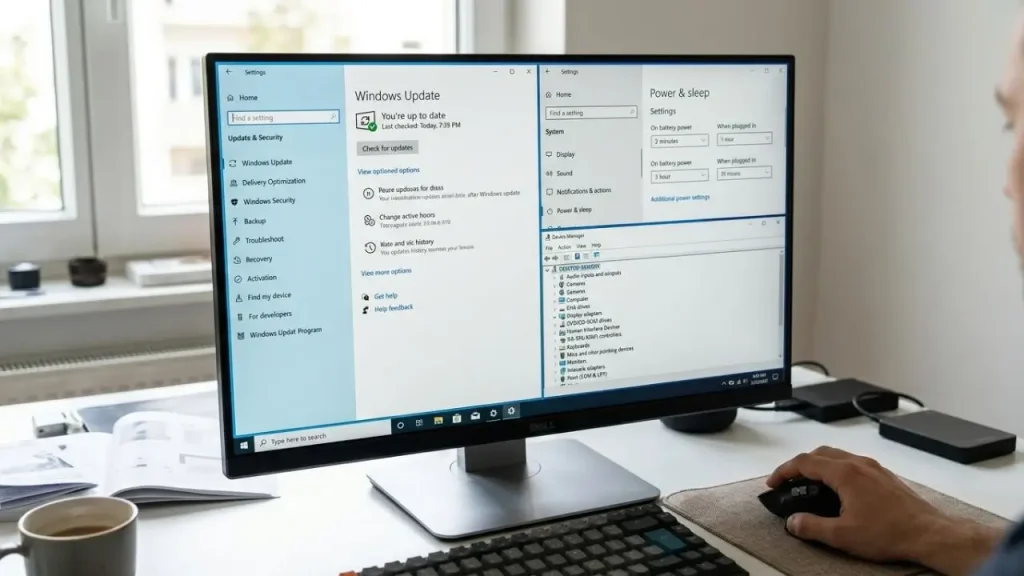
Even Windows 11 Bluetooth not working Although the adapter and driver appear to be fine, you should also check Windows itself. A system update can fix errors affecting Bluetooth, Wi-Fi, or other hardware functions.
Go to Settings > Windows Update and check for available updates. Install any pending updates and then restart your computer. In cases of major issues, optional driver updates may also be worth considering, provided they are available for your device.
If you use Windows 11 in a virtual environment, hardware features like Bluetooth may behave differently than on a standard PC. In this case, our guide on the Windows 11 ISO for VirtualBox can be helpful if you want to set up or test Windows 11 in VirtualBox.
However, the opposite can also occur: Bluetooth might have stopped working only after a specific Windows update. In this case, check whether the problem began immediately following an update. If a driver update was the cause, reverting to the previous driver version might help.
Check power management settings
Windows can temporarily disable certain hardware components to save power. In some cases, this can cause issues with Bluetooth, particularly on laptops.
Open Device Manager, locate the Bluetooth adapter, and open its properties. If a “Power Management” tab is available, you may find an option there that allows Windows to turn off the device to save power.
This setting may be relevant if Bluetooth keeps disappearing or fails to work after waking the computer from sleep mode. However, you should only change this setting if the option actually appears for your specific adapter.
Check Bluetooth hardware
With a desktop PC, it is also important to verify whether Bluetooth hardware is actually present. Not every motherboard has a built-in Bluetooth adapter; some Wi-Fi cards include Bluetooth functionality, while others support only Wi-Fi.
Bluetooth is usually built into laptops. However, if the Bluetooth entry is completely missing from Device Manager, this could indicate a disabled adapter, a missing driver, or a hardware issue.
If Bluetooth has completely disappeared after a fresh installation of Windows 11, the first step should be to install the appropriate Wi-Fi/Bluetooth driver from the computer manufacturer. For a desktop PC, however, a separate USB Bluetooth adapter can be a simple solution if the internal hardware is actually missing or no longer functional.
5. Advanced solutions for persistent Bluetooth issues
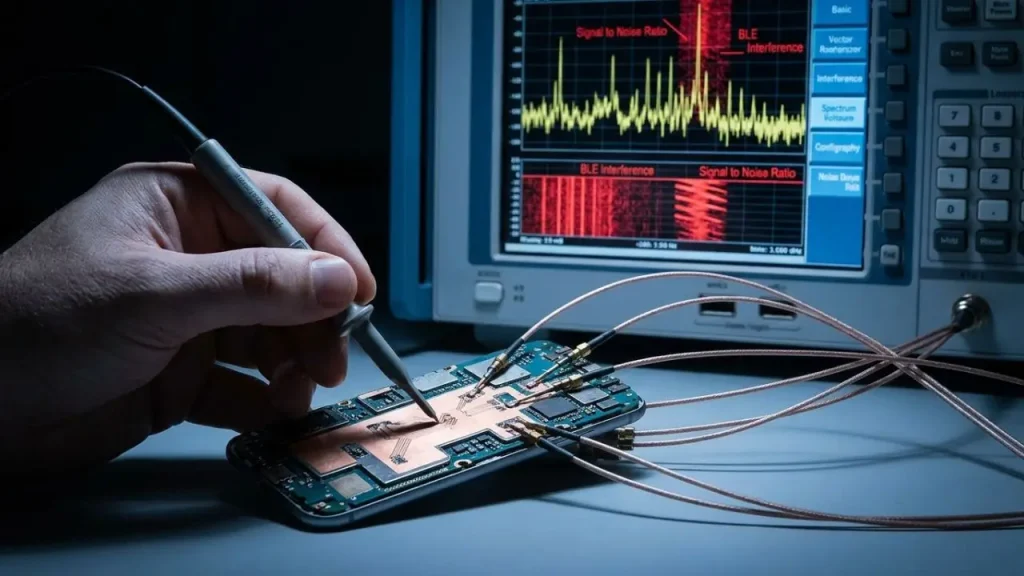
If the previous steps haven’t helped, it is worth conducting a more thorough troubleshooting process. First, determine whether the problem affects only a specific device or all Bluetooth devices.
For example, if a specific pair of headphones fails to connect while a Bluetooth mouse works without issues, the problem likely lies with the headphones themselves, their pairing status, or their stored connection data. Conversely, if no Bluetooth devices work at all, you should take a closer look at the Bluetooth adapter and its software.
Resetting the Bluetooth device
Many headphones, speakers, and keyboards offer a way to reset to factory settings. The exact procedure varies by manufacturer. After a reset, the device usually needs to be paired with Windows again.
This step can help if the accessory has retained old pairing information internally. First, remove the device from Windows, then reset it, and finally perform a new Bluetooth pairing.
Consider Wi-Fi and Bluetooth conflicts
On many devices, Bluetooth and Wi-Fi use wireless technology within the same frequency range. Under unfavorable conditions, this can lead to interference. This does not automatically mean that Wi-Fi disrupts the Bluetooth connection, but a congested or interference-prone wireless environment can impair connectivity.
If Bluetooth works but frequently drops the connection, try staying closer to the computer as a test. Also, remove any potential obstacles between the computer and the Bluetooth device. With a desktop PC, the position of the Bluetooth adapter can also be a factor.
Check BIOS or UEFI settings
On some computers, specific wireless modules can be disabled in the BIOS or UEFI. While this is rarely the root cause, it can be relevant if Bluetooth suddenly disappears from Windows entirely.
If you are unfamiliar with BIOS or UEFI settings, proceed with caution. Do not change settings if you do not know what they do. For laptops, it is often more practical to first consult the manufacturer’s official documentation or the appropriate support driver.
When a hardware problem is likely
If Bluetooth remains completely missing after a clean driver installation, a restart, and various tests, a hardware defect cannot be ruled out. This is especially true if the adapter no longer appears in Device Manager at all.
If the built-in troubleshooter cannot resolve the issue, Microsoft offers a detailed Bluetooth troubleshooting guide with further steps for Windows 11.
In the case of a laptop, an internal defect in the wireless module could be the cause. With a desktop PC, the problem can often be narrowed down more easily by testing a compatible USB Bluetooth adapter.
The key indicator here is the behavior of other devices. If multiple Bluetooth devices work without issues on another computer but are not detected at all on your own PC, the cause likely lies with the Windows system or the hardware of the affected computer.
Conclusion
If Windows 11 Bluetooth is not working, it doesn’t necessarily mean the hardware is broken. Often, the issue stems from a disabled Bluetooth switch, a faulty pairing record, a problematic driver, or a Windows service.
Start with the simple steps: enable Bluetooth, put your accessory into pairing mode, remove old connections, and restart your computer. If that doesn’t work, check the Bluetooth driver, Windows services, and available updates.
For persistent issues, it is worth taking a closer look at power management settings, the hardware itself, and potential driver conflicts. By proceeding systematically and testing after each change, you can usually pinpoint the cause much faster.
Frequently Asked Questions About Windows 11 Bluetooth
1. Why has Bluetooth suddenly stopped working in Windows 11?
Common causes include a faulty driver, a Windows update, disabled Bluetooth, or an issue with saved pairing information. A Bluetooth device with a dead battery could also be the culprit.
2. Why isn’t my Bluetooth device showing up in Windows 11?
First, check that the device is turned on and in pairing mode. Also, ensure it isn’t already connected to a smartphone or another computer. If it still doesn’t appear, there might be an issue with the Bluetooth adapter or driver.
3. How can I restart Bluetooth in Windows 11?
Turn Bluetooth off and then back on under **Settings > Bluetooth & devices**. For persistent issues, you can also restart your computer or restart the relevant Bluetooth service via the Windows Services manager.
4. What can I do if the Bluetooth toggle is completely missing?
If the Bluetooth option is missing from Windows Settings, check Device Manager. If the Bluetooth adapter is missing there as well, the cause could be a missing driver, a disabled wireless module, or a hardware problem.
5. How do I reinstall the Bluetooth driver in Windows 11?
Open Device Manager, locate the Bluetooth adapter, and uninstall the device. Then, restart Windows. Windows will often automatically detect the adapter and reinstall the driver. Alternatively, you can install the appropriate driver from your computer manufacturer’s website.
