

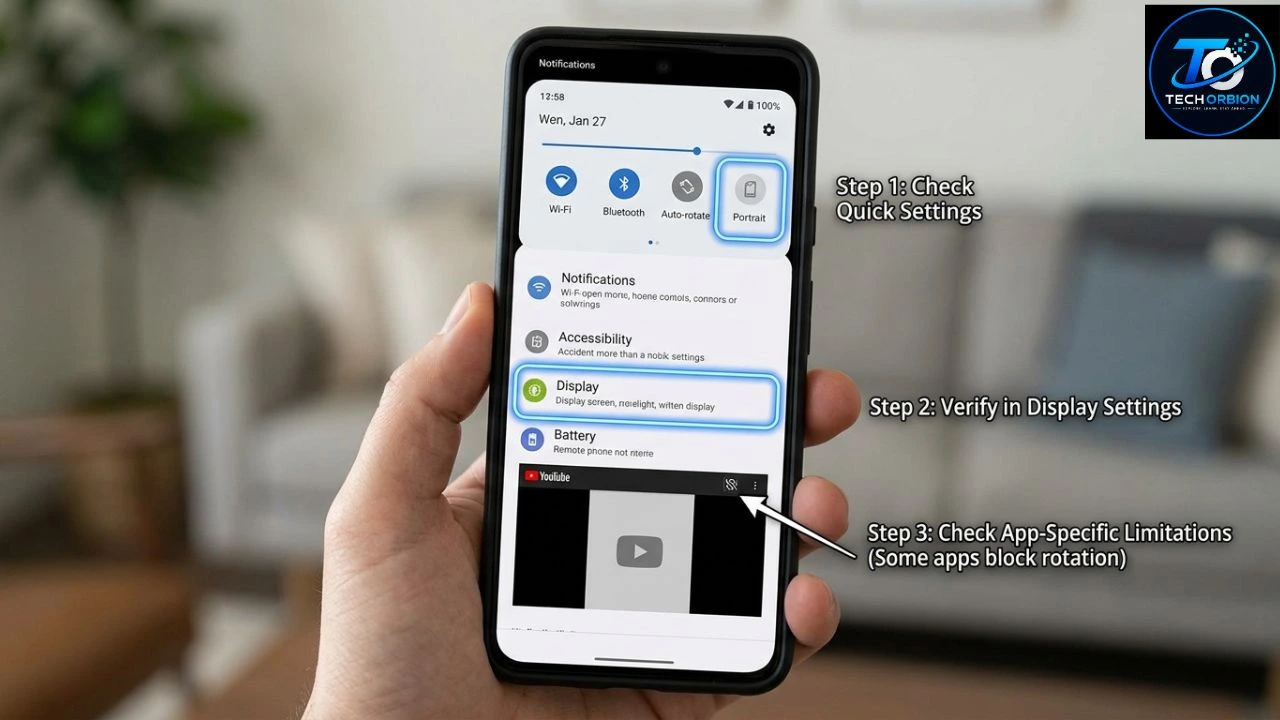
If Android auto rotate not working? is making your phone stay stuck in portrait or landscape mode, the problem is usually related to a setting, software glitch, a specific app, or the phone’s motion sensors. In most cases, you can fix it yourself without taking the phone to a repair shop.
Android phones use sensors to detect when you turn the device. When auto-rotate is enabled, the screen can switch between portrait and landscape orientation automatically. Google also recommends checking the auto-rotate setting first when a phone does not rotate.
This guide explains the most common reasons Android screen rotation is not working and shows simple solutions you can try. The steps can vary slightly between Samsung Galaxy, Google Pixel, OnePlus, Xiaomi, Motorola, and other Android phones.
Why Is Android Auto Rotate Not Working?
There are several possible reasons your Android screen won’t rotate. The most common ones include:
- Auto-rotate is turned off.
- The phone is locked to portrait or landscape mode.
- A particular app does not support screen rotation.
- A temporary Android software glitch is affecting rotation.
- The phone needs a system update.
- An installed app is interfering with screen rotation.
- The phone’s motion or orientation sensor may have a problem.
- Accessibility or display settings may affect how rotation works.
Before trying complicated solutions, start with the easiest fixes.
1. Turn On Auto-Rotate
The first thing to check when Android auto rotate is not working is the auto-rotate setting.
On many Android phones, you can find it in Quick Settings.
- Swipe down from the top of your screen.
- Look for Auto-rotate.
- If it says Portrait or Landscape, tap it.
- Change it to Auto-rotate.
- Turn your phone sideways and test the screen.
The exact name and location can vary by manufacturer. Google lists Auto-rotate screen under display settings on supported Android devices.
If you cannot find the option in Quick Settings, open:
Settings → Display → Auto-rotate screen
On some phones, you may need to search for auto rotate inside the Settings app.
Quick Tip
If your phone rotates accidentally when you do not want it to, you can turn auto-rotate off again and use portrait mode.
2. Restart Your Android Phone
Sometimes screen rotation not working on Android is caused by a temporary software problem.
A simple restart can reload Android services and sensors.
To restart your phone:
- Press and hold the power button.
- Select Restart.
- Wait for the phone to turn back on.
- Enable auto-rotate.
- Test the screen again.
This is one of the safest troubleshooting steps because it does not delete your apps, photos, or personal files.
3. Check Whether the App Supports Rotation
Before assuming that your phone has a problem, test rotation in another app.
Some apps are designed to work only in portrait mode. Others may support landscape mode only under certain conditions.
For example, open an app that normally supports landscape orientation, such as a video player or web browser. Turn your phone sideways and see what happens.
If rotation works in other apps but not in one particular app, your phone’s auto-rotate feature may be working correctly.
In that situation, try:
- Updating the app
- Closing and reopening the app
- Clearing its cache
- Checking the app’s settings
- Contacting the app developer if the problem continues
This distinction is important because a rotation problem limited to one app can have a different cause from a system-wide rotation problem. Google also recommends checking whether a specific app is responsible when diagnosing some Pixel screen problems.
4. Check for an Android System Update
An outdated version of Android can sometimes cause unexpected software behavior.
If Android auto rotate not working after an update or another system change, check whether another update is available.
Open:
Settings → System → Software update
The exact menu may differ depending on your phone.
If an update is available, install it and restart your device afterward.
For Pixel phones, Google’s troubleshooting guidance specifically recommends checking for a system update when the screen does not rotate.
Why Updates Can Help
System updates can include:
- Bug fixes
- Sensor improvements
- App compatibility fixes
- Display improvements
- Security updates
- General stability improvements
Always keep enough battery available and use a reliable internet connection before starting a major system update.
5. Test Rotation in Safe Mode
If Android screen rotation stopped working after installing an app, a downloaded application could be interfering with the phone.
Safe Mode can help you determine whether a third-party app is responsible.
The exact steps to enter Safe Mode differ between Android manufacturers, so check your phone manufacturer’s instructions.
Once Safe Mode is active, test screen rotation.
If Rotation Works in Safe Mode
This suggests that a downloaded app may be causing the problem.
Think about apps you installed or updated shortly before the problem began. Start by removing recently installed apps and testing rotation again.
If Rotation Still Does Not Work
If rotation fails even in Safe Mode, a third-party app is less likely to be the cause. You can then continue with other troubleshooting steps.
Google provides Safe Mode as part of its Pixel troubleshooting process for determining whether a downloaded app is causing a screen rotation problem.
6. Remove the Phone Case Temporarily
This solution is less common, but it is worth testing if the phone has recently been dropped, modified, or fitted with a new case or accessory.
Remove the case and test the phone.
Also check whether:
- The screen is clean.
- Any stickers cover sensors.
- A screen protector is interfering with the device.
- The phone has visible physical damage.
Google’s Pixel troubleshooting guidance recommends checking the physical screen and removing accessories or stickers when diagnosing certain screen-related problems.
If the phone was recently dropped or exposed to water and rotation stopped immediately afterward, hardware damage becomes more likely.
7. Check Accessibility and Display Settings
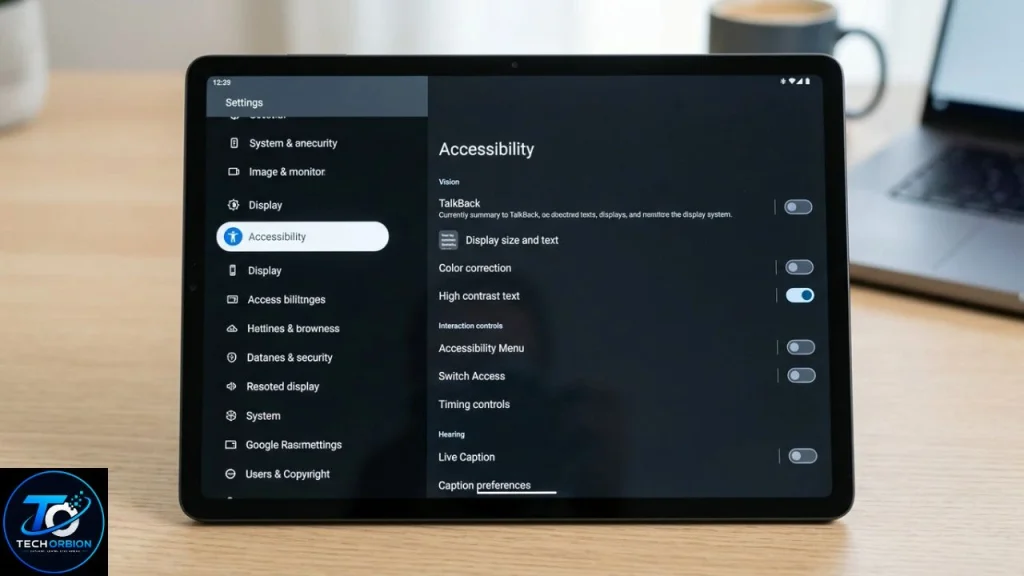
Some Android phones have accessibility and display features that can affect how the screen behaves.
Open your phone’s Settings and search for:
Auto-rotate
Also check the accessibility settings on your device.
Google notes that users of TalkBack may need to keep auto-rotate disabled because screen rotation can interrupt spoken feedback.
If you use accessibility features, check their settings before changing advanced options.
8. Clear the Cache of a Problem App
If the rotation problem happens only inside one application, clearing that app’s cache may help.
Try:
Settings → Apps → [App Name] → Storage → Clear Cache
The menu names can vary depending on your Android phone.
Clearing the cache generally removes temporary files rather than your entire phone’s data. However, be careful with Clear Storage or Clear Data, because those options can remove app-specific information or reset the app.
After clearing the cache, reopen the app and test landscape mode.
9. Check Whether the Phone’s Sensors Are Working
Android uses hardware sensors to determine the phone’s orientation.
If auto-rotate is enabled but the phone never reacts when you turn it, a sensor-related problem may be possible.
You can test this by trying rotation in several different apps.
If:
- Auto-rotate is enabled,
- Multiple apps refuse to rotate,
- Restarting does nothing,
- Updates do not help,
- Safe Mode does not fix it,
then the issue may be deeper than a simple setting.
Some phone manufacturers provide built-in hardware diagnostics. If your device has a diagnostic tool, use it to test the relevant sensors.
If the phone has suffered physical damage, professional service may be necessary.
10. Reset Settings as a Last Resort
If none of the previous methods work, your phone may have a configuration problem.
Some Android devices provide an option to reset certain settings without performing a complete factory reset.
Look under:
Settings → System → Reset options
The available options depend on your phone.
Do not immediately perform a factory reset just because auto-rotate is not working. A factory reset removes personal data and requires you to set up the phone again.
Before using any reset option, make sure your important photos, contacts, documents, and other data are backed up.
Android Auto Rotate Not Working? After an Update
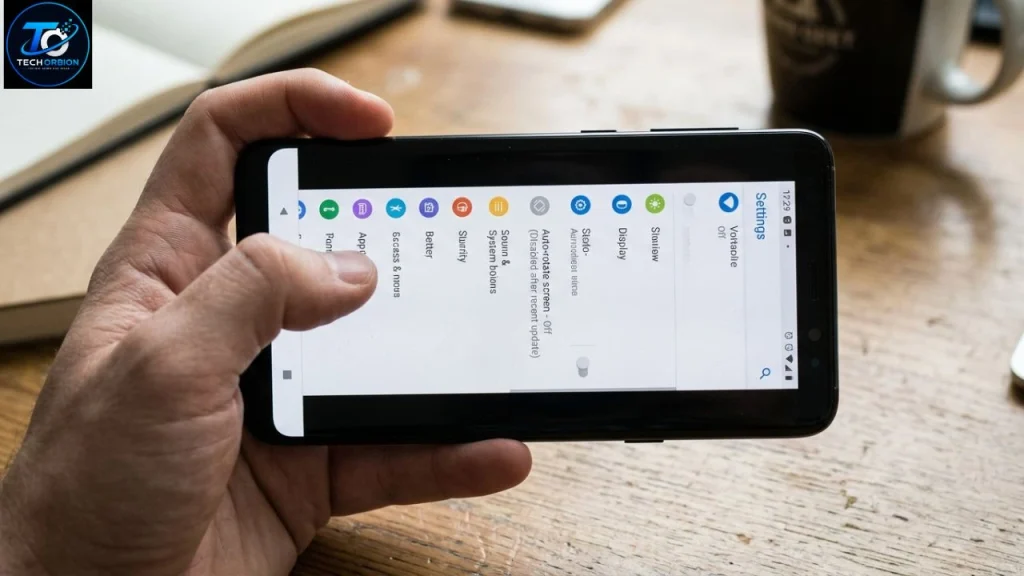
If screen rotation worked before an Android update and stopped afterward, first restart the phone and check the auto-rotate setting.
Then check whether another software update is available.
You should also test:
- Another app.
- Safe Mode.
- Auto-rotate from Settings.
- The phone’s display and accessibility settings.
If the issue appeared immediately after an update and continues across multiple apps, it may be a software bug rather than a simple setting.
Android Screen Stuck in Portrait Mode
If your phone is stuck in portrait mode, try this quick checklist:
- Turn on Auto-rotate.
- Restart the phone.
- Test another app.
- Install available Android updates.
- Test the phone in Safe Mode.
- Remove recently installed apps if Safe Mode fixes the problem.
- Check the phone for physical damage.
If the phone still refuses to rotate everywhere, consider contacting the device manufacturer’s support team.
Android Screen Stuck in Landscape Mode
The same troubleshooting process applies if your screen is stuck horizontally.
First, check whether the phone is actually set to Auto-rotate rather than a locked orientation.
Then restart the device and test multiple apps.
If only one application remains stuck in landscape mode, the application itself may be controlling the orientation.
How to Know if It Is a Software or Hardware Problem
A useful way to narrow down the problem is to look at how widely it occurs.
| Problem | Possible Cause |
|---|---|
| Rotation disabled everywhere | Auto-rotate setting |
| One app will not rotate | App limitation or bug |
| Rotation stopped after an app install | Third-party app conflict |
| Rotation stopped after an update | Software issue |
| Rotation fails in Safe Mode | System or hardware issue |
| Phone was dropped before problem | Possible hardware damage |
| Rotation works after restart | Temporary software glitch |
This is not a definitive hardware diagnosis, but it can help you decide what to try next.
When Should You Contact Support?
You should consider contacting your phone manufacturer’s support team if:
- Auto-rotate is definitely enabled.
- Multiple apps fail to rotate.
- Restarting does not help.
- Software updates do not help.
- Safe Mode does not solve the problem.
- The phone was recently dropped or damaged.
- Other sensors or hardware features are also behaving strangely.
If you are using a Pixel phone, Google’s official troubleshooting documentation recommends checking auto-rotate, installing system updates, and testing Safe Mode when the screen does not rotate.
Frequently Asked Questions
Why is my Android auto rotate not working?
The most common causes are a disabled auto-rotate setting, an app that does not support rotation, a temporary software problem, an outdated system, or a sensor issue. Start by checking Auto-rotate in your display or Quick Settings.
How do I turn on auto rotate on Android?
Swipe down from the top of the screen and tap Auto-rotate if it is available. You can also search for Auto-rotate screen in the Settings app. Google’s Android guidance places the setting under display settings on supported devices.
Why won’t my Android screen rotate in one app?
The app may not support landscape mode, or it may have its own orientation settings. Test another app. If other apps rotate normally, the problem is probably limited to that application.
Why is my Android phone stuck in portrait mode?
Check that Auto-rotate is enabled instead of Portrait Lock. If the setting is correct, restart the phone and test another app. You can also check for system updates.
Can a software update fix Android screen rotation?
Yes. If the problem is caused by a software bug, a later system update may fix it. Check your phone’s Software Update section for available updates. Google specifically recommends checking for system updates when a Pixel screen does not rotate.
How do I know if my phone’s rotation sensor is broken?
If auto-rotate fails across multiple apps, including in Safe Mode, and normal troubleshooting does not help, a sensor or other hardware problem may be possible. If the phone was dropped or damaged, professional diagnosis is recommended.
Should I factory reset my phone if auto rotate does not work?
No. A factory reset should not be your first solution. Try checking Auto-rotate, restarting the phone, testing another app, updating Android, and using Safe Mode first. Back up your important data before considering a factory reset.
Conclusion
When Android auto rotate not working becomes a problem, start with the simplest solution: check whether Auto-rotate is enabled. If that does not help, restart the phone, test another app, check for Android updates, and try Safe Mode.
If rotation works in Safe Mode, a downloaded app may be responsible. If it does not work anywhere and the phone has experienced physical damage, a hardware issue becomes more likely.
The good news is that many screen rotation problems are caused by simple settings or temporary software issues. Working through these steps one at a time can help you identify the cause without immediately resorting to a factory reset or repair.

1 Comment
Pingback: Android Fingerprint Sensor Not Working? 10 Easy Fixes