

Meta Description
Windows 11 Tips and Tricks help improve speed, boost productivity, customize your PC, enhance security, and unlock powerful hidden features.
Windows 11 Tips and Tricks: 25 Hidden Features to Boost Productivity
Introduction
Windows 11 Tips and Tricks can completely change the way you use your computer. Whether you are a beginner or an experienced PC user, learning the right settings, shortcuts, and hidden features can save time, improve performance, and make everyday tasks much easier. Microsoft’s latest Windows operating system introduces a modern interface, better multitasking tools, improved security, AI-powered features like Microsoft Copilot, and numerous customization options that many users never discover.
Windows 11 Tips and Tricks In this comprehensive Windows 11 guide, you’ll learn the best Windows 11 tips and tricks, explore powerful Windows 11 hidden features, improve Windows 11 performance, customize your desktop, boost productivity, and optimize your computer for work, gaming, and everyday use. From Snap Layouts and Virtual Desktops to Windows Security, File Explorer Tabs, and battery optimization, this guide covers everything you need to unlock the full potential of Windows 11.
If you want more options, check our guide on Windows 11 Safe Mode Guide
Why Learn Windows 11 Tips and Tricks?
Windows 11 Tips and Tricks is much more than a visual upgrade over previous versions of Windows. It introduces smarter productivity tools, enhanced multitasking features, better privacy controls, improved gaming enhancements, and a cleaner user interface. However, many of these powerful features remain hidden beneath default settings, meaning countless users never take advantage of them.
Learning the best Windows 11 tips and tricks allows you to work faster, organize your desktop more efficiently, and increase productivity without installing additional software. Small changes such as customizing the Start Menu, mastering keyboard shortcuts, or enabling advanced Windows settings can significantly improve your daily workflow.
Benefits for Everyday Users
Every Windows user has different needs. Students want better organization, professionals need efficient multitasking, gamers require maximum performance, while casual users simply want a smooth experience.Windows 11 Tips and Tricks offers solutions for all these situations through its improved design and built-in productivity tools.
By following a proper Windows 11 beginner guide, you can quickly learn how to personalize your desktop, organize applications, manage notifications, and improve computer performance. Even users who have recently upgraded from Windows 10 will notice significant improvements after applying a few simple optimizations.
Productivity Improvements
One of the biggest strengths of Windows 11 Tips and Tricks is its focus on productivity. Features like Snap Layouts, Snap Groups, Virtual Desktops, Clipboard History, Focus Sessions, and Microsoft Copilot help users complete tasks more efficiently.
Instead of switching between dozens of windows manually, Windows 11 Tips and Tricks lets you arrange applications into organized layouts that make multitasking much easier. These productivity improvements are especially useful for remote workers, content creators, developers, students, and business professionals who work with multiple applications simultaneously.
Customize Windows 11 Like a Pro
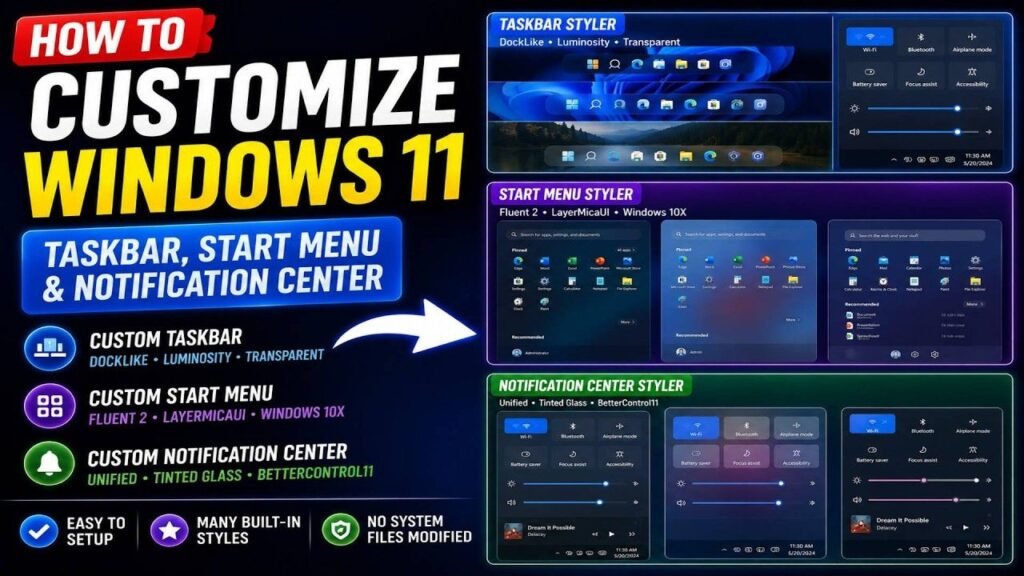
Customization is one of the most enjoyable aspects of Windows 11 Tips and Tricks. Instead of using the default appearance, you can personalize nearly every part of the interface, including the Start Menu, Taskbar, colors, wallpapers, icons, themes, and Quick Settings. These adjustments not only make Windows look better but also improve accessibility and workflow.
Personalizing your PC creates a more comfortable environment for work and entertainment. Whether you prefer a minimal desktop, a colorful theme, or a productivity-focused workspace, Windows 11 Tips and Tricksprovides extensive customization options without requiring third-party software.
Personalize the Start Menu
The redesigned Start Menu is centered by default and offers a cleaner layout than previous Windows versions. You can pin your favorite applications, remove unnecessary shortcuts, rearrange icons, and display recently used files for quicker access.
Keeping only frequently used apps inside the Start Menu reduces clutter and saves valuable time during everyday work. Users can also organize apps into folders, making navigation even easier when managing many programs.
Customize the Taskbar
The Taskbar is one of the most frequently used parts of Windows 11 Tips and Tricks. You can pin important applications, remove unused icons, customize notification behavior, and choose whether system icons such as Search, Widgets, Task View, or Microsoft Copilot remain visible.
A clean Taskbar improves desktop organization and reduces distractions. Pinning browsers, File Explorer, Microsoft Store, Office applications, and communication tools creates a more productive workspace while keeping essential programs only one click away.
Change Themes and Colors
Windows 11 Tips and Tricks includes multiple built-in themes that instantly change wallpapers, accent colors, sounds, and visual styles. You can also create your own personalized theme to match your preferences.
Many users prefer Dark Mode because it reduces eye strain during nighttime work and gives Windows a modern appearance. Others choose Light Mode for maximum readability. Accent colors can further personalize the interface while maintaining a professional look.
Hidden Windows 11 Features You Should Know
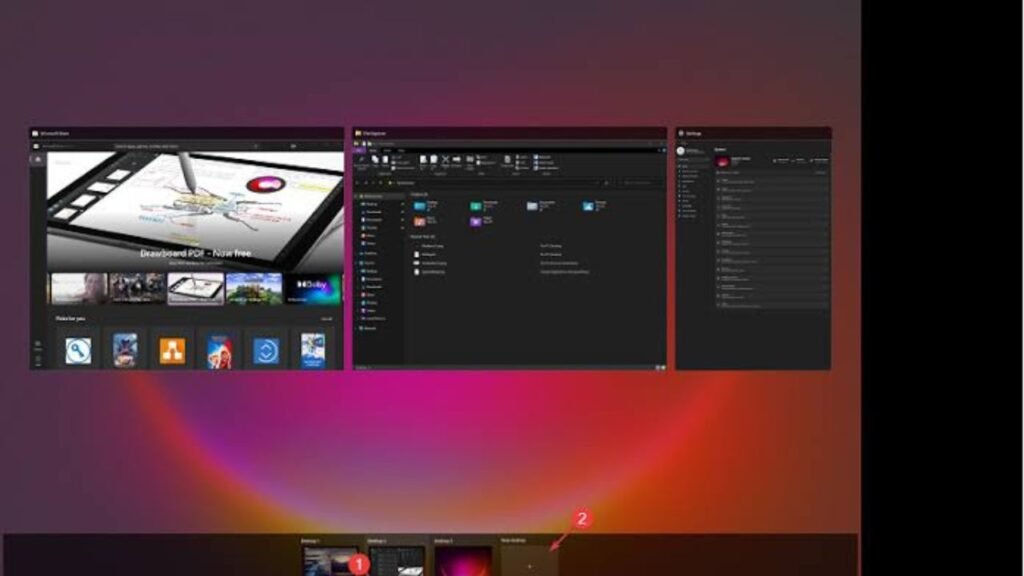
Many users only interact withWindows 11 Tips and Tricks at a basic level, unaware that Microsoft has included dozens of advanced productivity tools beneath the surface. These hidden Windows settings can dramatically improve workflow, desktop organization, and multitasking without installing extra software.
Exploring these lesser-known features allows users to work smarter rather than harder. Once you begin using these tools regularly, you’ll wonder how you ever managed without them.
Snap Layouts
Snap Layouts is one of the most useful multitasking features in Windows 11 Tips and Tricks. Hovering over the maximize button reveals several window arrangements that automatically organize open applications across your display.
This feature is especially valuable for professionals working with spreadsheets, web browsers, documents, communication apps, and research materials simultaneously. Instead of manually resizing windows, Snap Layouts handles everything with just a few clicks.
Snap Groups
After arranging applications with Snap Layouts, Windows automatically remembers them as Snap Groups. You can quickly restore the entire workspace after minimizing windows or switching between projects.
This feature is ideal for users managing multiple workflows throughout the day. For example, one Snap Group can contain work applications while another is dedicated to creative projects or online meetings.
Virtual Desktops
Virtual Desktops allow you to separate different activities into independent workspaces. One desktop may be used for office work, another for school assignments, another for gaming, and another for personal browsing.
Keeping tasks separated reduces distractions and helps users maintain better focus. Virtual Desktops are particularly valuable for professionals who need clean work environments without constantly opening and closing applications.
Focus Sessions
Modern computers often become sources of distraction due to constant notifications, emails, and messaging apps. Focus Sessions help users concentrate by temporarily reducing interruptions while tracking work sessions.
Combined with notification management and Focus Mode, this feature encourages deeper concentration and improved productivity. Whether studying, writing reports, coding software, or editing videos, Focus Sessions help maintain consistent workflow with fewer distractions.
Best Windows 11 Keyboard Shortcuts
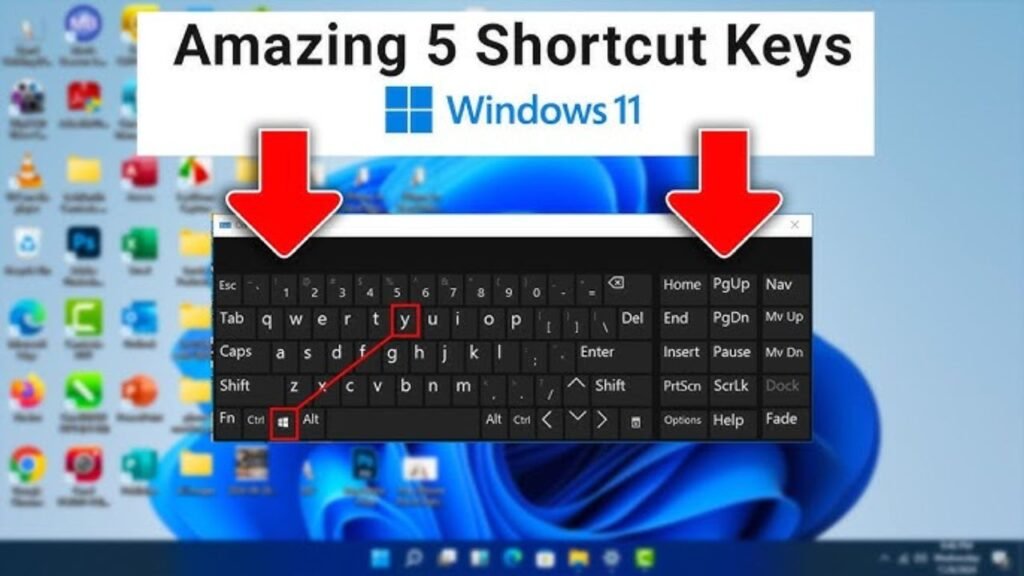
Keyboard shortcuts are among the most valuable Windows 11 tips and tricks because they allow you to perform tasks much faster than using a mouse. Whether you’re switching between applications, opening system settings, managing files, or taking screenshots, learning just a few shortcuts can significantly improve your workflow. Professionals, students, and casual users all benefit from reducing repetitive mouse clicks and navigating the Windows operating system more efficiently.
Windows 11 Tips and Tricks also introduces shortcuts that work seamlessly with newer features like Snap Layouts, Virtual Desktops, and Microsoft Copilot. By combining these shortcuts with productivity tools, you can complete everyday tasks in less time while keeping your desktop organized and responsive.
Productivity Shortcuts
Some keyboard shortcuts should become part of your daily routine because they save valuable time. Press Windows + E to open File Explorer, Windows + I to launch Windows Settings, and Windows + L to instantly lock your PC when leaving your desk. These simple shortcuts improve both productivity and security.
Other useful shortcuts include Windows + V to access Clipboard History, Windows + Shift + S for taking screenshots with the Snipping Tool, Windows + A to open Quick Settings, and Windows + N to manage Notifications. Using these shortcuts regularly makes Windows 11 feel faster and more intuitive.
Multitasking Shortcuts
Windows 11 Tips and Tricks is built for multitasking, and keyboard shortcuts make switching between tasks effortless. Press Alt + Tab to quickly move between open applications, or use Windows + Tab to open Task View, where you can see all running windows and access Virtual Desktops.
You can also use Windows + Left Arrow or Windows + Right Arrow to snap windows into place for side-by-side multitasking. These shortcuts work perfectly with Snap Layouts and Snap Groups, making it easy to organize multiple applications without dragging windows manually.
Speed Up Windows 11
Even a powerful computer can become slower over time due to unnecessary startup applications, temporary files, outdated software, and background processes. Fortunately, one of the best Windows 11 tips and tricks is learning how to optimize your system using built-in tools rather than relying on third-party software.
Improving Windows 11 performance not only makes your PC feel faster but also enhances stability, reduces loading times, and improves overall user experience. Regular maintenance keeps your computer running smoothly for years.
Disable Startup Apps
Many applications automatically launch when Windows starts. While some programs are essential, many simply consume memory and processing power without providing immediate benefits. Disabling unnecessary startup apps is one of the easiest ways to speed up Windows 11.
Open Task Manager, navigate to the Startup Apps section, and disable software that you rarely use during startup. This simple adjustment reduces boot time and frees system resources for more important tasks.
Clean Temporary Files
Temporary files accumulate over time and occupy valuable storage space. Windows automatically creates these files during updates, installations, browsing, and application usage, but they often remain long after they are needed.
If cleaning temporary files doesn’t resolve persistent startup problems, BSOD crashes, or Windows Update failures, follow our complete Windows Errors Fix Guide for advanced troubleshooting solutions.
Using the built-in Disk Cleanup utility or the Temporary Files section in Windows Settings allows you to safely remove unnecessary files. Regular cleaning improves storage management, speeds up your computer, and helps maintain consistent performance.
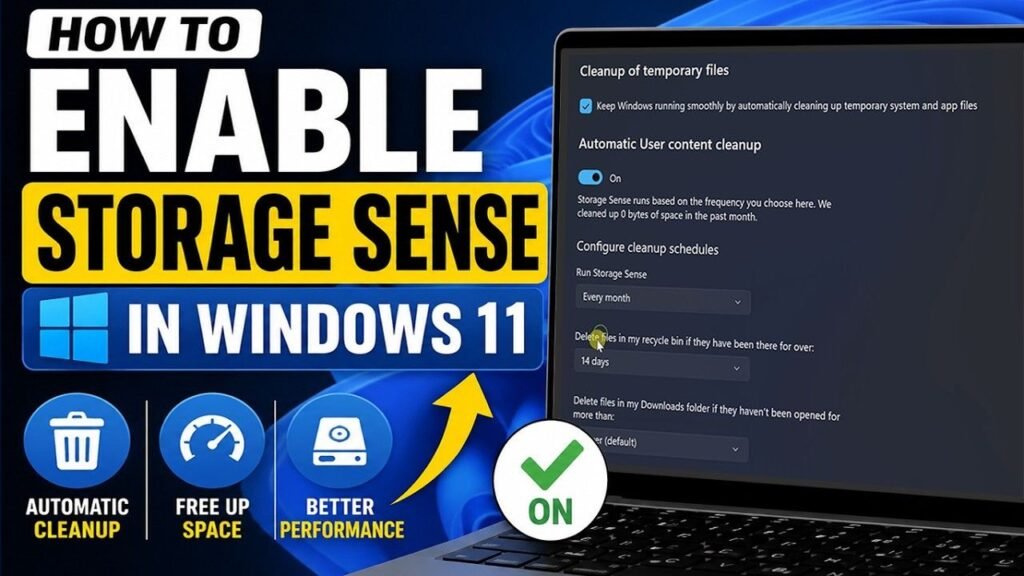
Enable Storage Sense
Storage Sense is one of the most useful hidden Windows features for automatic PC maintenance. When enabled, Windows periodically removes temporary files, clears the recycle bin, and deletes unnecessary system data without requiring manual cleanup.
Users who enable Storage Sense spend less time maintaining their computers while enjoying better Windows 11 optimization. It’s especially useful on laptops and devices with limited SSD storage.
Windows 11 Privacy Tips
Protecting personal information is more important than ever. Windows 11 Tips and Tricksprovides numerous privacy controls that allow users to manage app permissions, location access, microphone usage, camera settings, and diagnostic data. Understanding these settings helps keep your personal information secure while giving you greater control over your device.
One of the most valuable Windows 11 tips for beginners is reviewing privacy settings immediately after installing or upgrading the operating system. A few minutes spent adjusting these options can greatly improve your online privacy.
Turn Off Unnecessary Tracking
Windows collects certain diagnostic information to improve system performance and user experience. However, users who prioritize privacy can limit optional data collection through the Privacy & Security section of Windows Settings.
Reviewing advertising preferences, disabling personalized ads, and turning off unnecessary tracking features reduces data sharing while still maintaining full functionality. These simple changes help create a more private computing experience.
Manage App Permissions
Every installed application requests different permissions, including access to your camera, microphone, contacts, location, and file system. Not every application requires these permissions to function properly.
Regularly reviewing app permissions ensures that only trusted applications have access to sensitive information. Limiting unnecessary permissions improves both security and privacy without affecting everyday usability.
Windows 11 Security Tips
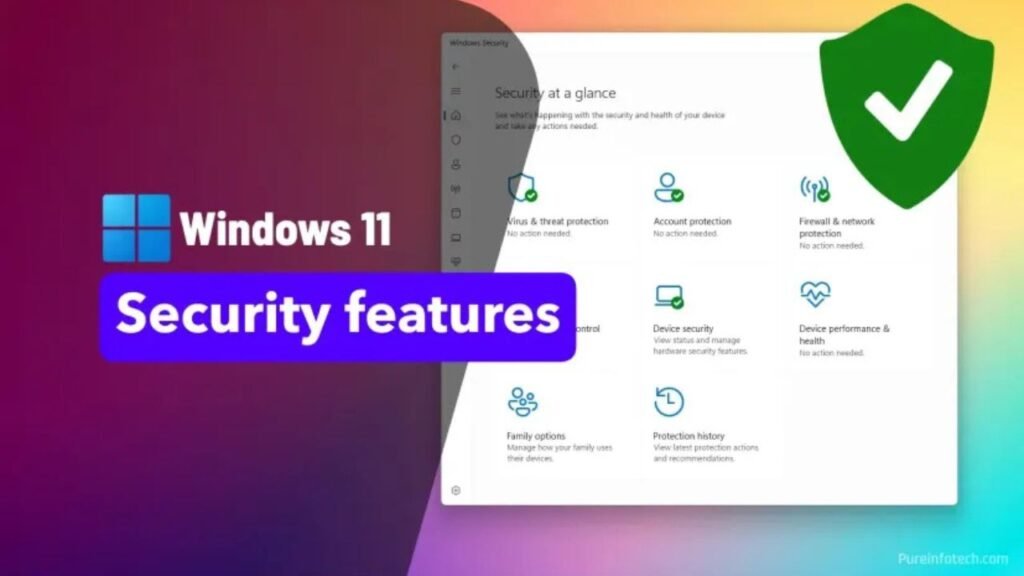
Security is one of Microsoft’s biggest priorities in Windows 11 Tips and Tricks. The operating system includes advanced protection against malware, ransomware, phishing attacks, and unauthorized access through built-in security features. Taking advantage of these tools is one of the smartest Windows 11 hacks every user should learn.
Maintaining strong security habits not only protects personal files but also improves overall system reliability. Fortunately, Windows 11 Tips and Tricks includes powerful security features that require little configuration once enabled.
Windows Security
Windows Security serves as the central dashboard for antivirus protection, firewall management, account protection, device security, and system health monitoring. Microsoft continuously updates these tools to defend against emerging threats.
Running regular security scans, keeping Windows Update enabled, and reviewing security recommendations ensure that your computer remains protected. For most users, the built-in security suite provides excellent protection without additional software.
If your PC continues to experience crashes or system errors despite having strong security protection, read our Windows Errors Fix Guide for step-by-step repair methods.
Ransomware Protection
Ransomware attacks have become increasingly common, making file protection more important than ever. Windows 11 Tips and Tricks includes Controlled Folder Access, which helps prevent unauthorized applications from modifying important files stored on your computer.
Users should also maintain regular Backup routines using OneDrive or external storage devices. Having recent backups ensures that important documents, photos, and work files remain safe even if unexpected problems occur.
Smart App Control
Smart App Control is another advanced security feature designed to prevent potentially harmful applications from running on your computer. It analyzes software before execution and blocks suspicious or untrusted programs.
Combined with Windows Security and regular software updates, Smart App Control creates multiple layers of protection against malware and unsafe downloads. This feature is particularly useful for users who frequently install new applications or browse unfamiliar websites.
Windows 11 Gaming Tips
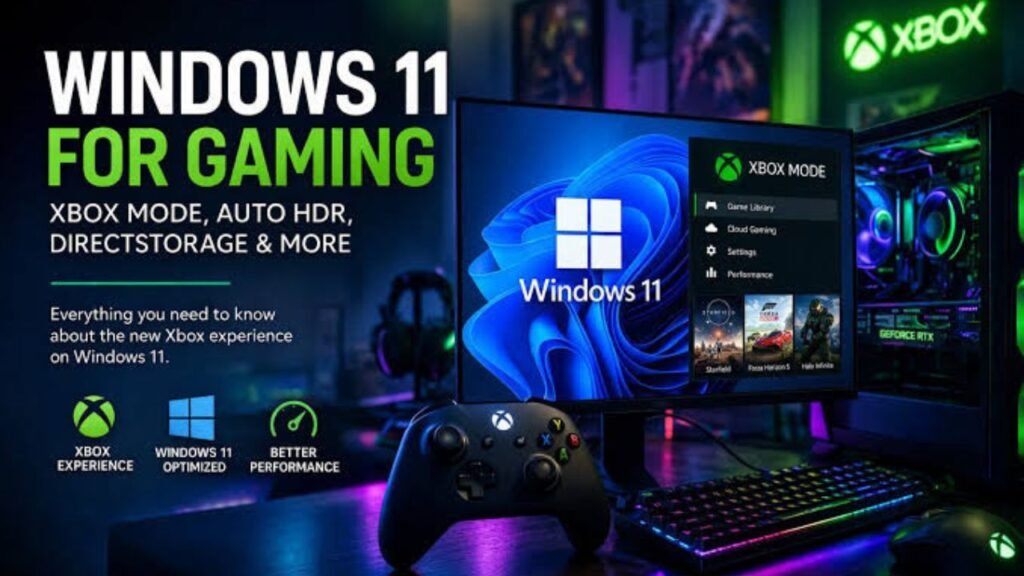
Windows 11 Tips and Tricks is designed with gamers in mind, offering several built-in enhancements that improve graphics, loading times, and overall gameplay. Whether you enjoy competitive online games or immersive single-player adventures, optimizing your system can deliver smoother performance and a better gaming experience. These Windows 11 tips and tricks help you get the most out of your hardware without installing complicated optimization software.
Microsoft has also introduced technologies that work with modern graphics cards and SSDs to reduce loading times and improve responsiveness. Combined with regular Windows Update installations and updated graphics drivers, Windows 11 Tips and Tricks provides an excellent platform for both casual and professional gamers.
Enable Game Mode
Game Mode is one of the easiest performance settings to enable. When turned on, Windows automatically prioritizes system resources for your game, reduces unnecessary background activity, and minimizes interruptions from notifications and updates.
For most users, Game Mode improves frame consistency and creates a smoother gameplay experience. It is especially useful on mid-range systems where every bit of available CPU and memory performance matters.
DirectStorage
DirectStorage is an advanced technology developed by Microsoft that allows compatible games to load assets directly from high-speed NVMe SSDs to the graphics card. This dramatically reduces loading screens and creates a more seamless gaming experience.
Although DirectStorage requires supported hardware and compatible games, it represents the future of PC gaming. As more developers adopt this technology, Windows 11 Tips and Tricks users will benefit from faster game loading and improved world streaming.
Graphics Settings
Windows 11 Tips and Tricks includes built-in graphics settings that allow users to assign performance preferences for individual applications and games. High-performance mode ensures that demanding games use the dedicated graphics processor whenever possible.
Keeping graphics drivers updated, enabling hardware acceleration where supported, and adjusting display settings can further improve gaming performance. These simple adjustments help optimize your PC without sacrificing image quality.
Battery Saving Tips
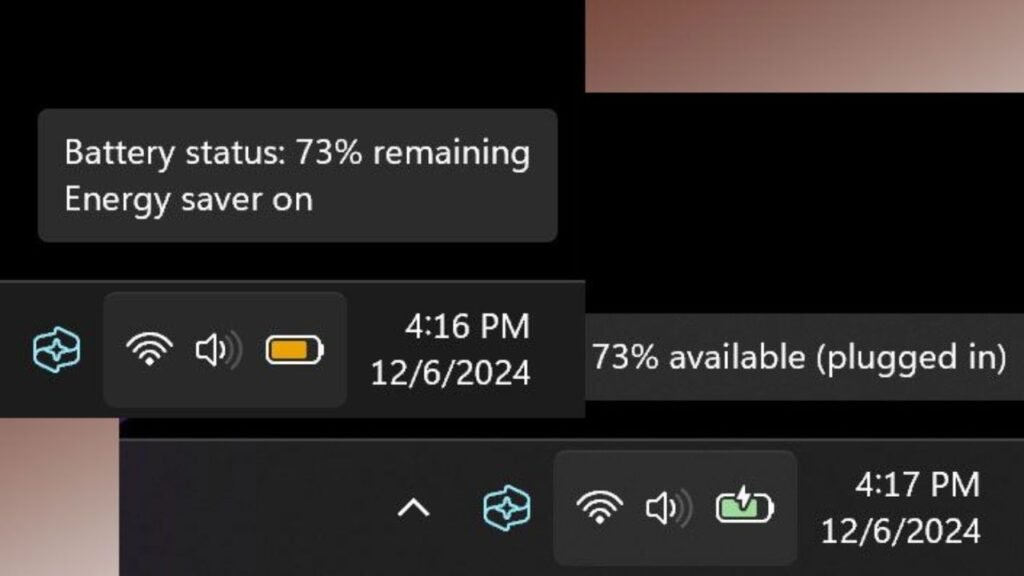
Laptop users often need to balance performance with battery life. Fortunately, Windows 11 includes several intelligent power management tools that extend battery life while maintaining a responsive user experience. Learning these Windows 11 battery saving tips is especially valuable for students, travelers, and remote workers.
Battery optimization is not just about reducing brightness. Proper Power Settings, efficient background app management, and smart charging habits all contribute to longer battery life and healthier battery performance over time.
Power Modes
Windows 11 allows users to switch between different Power Settings depending on their needs. Performance Mode delivers maximum speed for demanding tasks, while Balanced Mode offers an excellent mix of performance and efficiency. Battery Saver prioritizes longer battery life when power is limited.
Selecting the appropriate power mode for your current activity helps reduce unnecessary energy consumption without noticeably affecting everyday productivity. Switching modes takes only a few seconds and can significantly extend battery runtime.
Battery Saver
Battery Saver automatically reduces background activity, limits synchronization, lowers display brightness, and decreases unnecessary power usage once your battery reaches a selected percentage. This feature is particularly useful during travel or when charging is not immediately available.
Users should also reduce screen brightness, disconnect unused Bluetooth devices, close unnecessary applications, and manage startup programs to maximize battery efficiency. These small adjustments combine to provide noticeable improvements in battery life.
Conclusion
Mastering these Windows 11 Tips and Tricks can completely transform the way you use your computer. From customizing the Start Menu and Taskbar to improving Windows 11 performance, enhancing privacy, strengthening security, and unlocking powerful multitasking tools, every feature covered in this guide contributes to a faster, smarter, and more enjoyable computing experience.
Whether you’re following a Windows 11 beginner guide, searching for hidden Windows 11 features you should know, or looking for ways to increase productivity, these practical techniques help you make the most of Microsoft’s latest operating system. By regularly updating Windows, organizing your desktop, using keyboard shortcuts, enabling security features, and optimizing system settings, you can enjoy a reliable, secure, and high-performing PC for work, study, entertainment, and gaming.
Even after applying these Windows 11 tips and tricks, you may occasionally encounter startup issues, Blue Screen of Death (BSOD) errors, or update failures. If that happens, our Windows Errors Fix Guide provides detailed solutions to diagnose and repair common Windows problems.
Frequently Asked Questions (FAQs)
1. What are the best Windows 11 tips and tricks?
Some of the best Windows 11 tips and tricks include using Snap Layouts, enabling Clipboard History, organizing Virtual Desktops, customizing the Taskbar, using keyboard shortcuts, enabling Storage Sense, and adjusting privacy and security settings for better performance.
2. How can I make Windows 11 faster?
You can speed up Windows 11 by disabling unnecessary startup apps, deleting temporary files, enabling Storage Sense, updating Windows regularly, uninstalling unused software, and selecting the appropriate Power Mode.
3. What hidden features does Windows 11 have?
Windows 11 includes many hidden features such as Snap Groups, Focus Sessions, Clipboard History, File Explorer Tabs, Virtual Desktops, Storage Sense, Quick Settings, and Microsoft Copilot integration.
4. Is Windows 11 better than Windows 10?
For most users, Windows 11 offers improved security, a modern user interface, better multitasking tools, enhanced gaming support, stronger productivity features, and long-term software support from Microsoft.
5. How do I customize Windows 11?
You can customize Windows 11 by changing themes, wallpapers, accent colors, Start Menu layout, Taskbar icons, widgets, lock screen settings, and desktop backgrounds through the Personalization section in Windows Settings.
6. Which Windows 11 settings should I change first?
Start by reviewing privacy settings, enabling Windows Security, customizing the Taskbar, activating Storage Sense, organizing the Start Menu, configuring Windows Update, and choosing the best power mode for your device.
7. How do I improve Windows 11 performance?
Improve Windows 11 performance by keeping drivers updated, removing unnecessary applications, managing startup programs, cleaning temporary files, optimizing storage, and installing the latest Windows updates.
8. What are the best Windows 11 keyboard shortcuts?
Popular shortcuts include Windows + E (File Explorer), Windows + I (Settings), Windows + V (Clipboard History), Windows + Shift + S (Screenshot), Alt + Tab (Switch Apps), and Windows + Tab (Task View).
9. How do I enable Snap Layouts in Windows 11?
Hover your mouse over the maximize button on any application window, then choose one of the available Snap Layout options. You can also use keyboard shortcuts like Windows + Left Arrow and Windows + Right Arrow to snap windows quickly.
10. Is Windows 11 good for gaming?
Yes. Windows 11 is an excellent gaming platform thanks to features like Game Mode, DirectStorage, Auto HDR (on supported hardware), improved graphics settings, and optimized resource management for modern games.
