

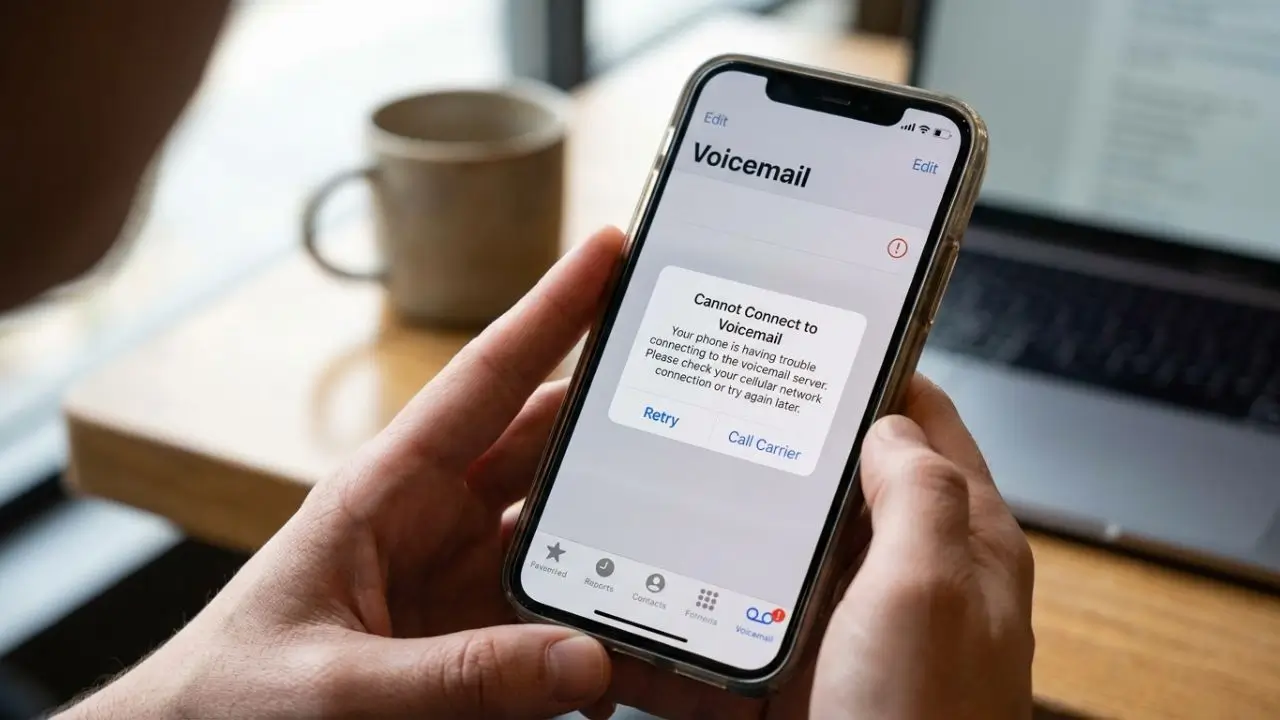
You’re waiting for an important message, but suddenly your voicemail stops working. Perhaps callers are unable to leave messages, or you find that you cannot listen to the voice messages you’ve already received. This is frustrating—especially when you’re expecting an important call. If you’re asking yourself, “Why is my voicemail not working?”, there could be several reasons. It might be due to a weak mobile signal, a full mailbox, or an incorrect setting. The following tips will help you troubleshoot the issue step by step and get your voicemail back up and running on your Android phone or iPhone.
1. Why Is My Voicemail Not Working? Check your mobile connection
A stable mobile connection is essential for many voicemail services to function correctly. If your phone lacks a network signal, it can cause issues with calls and voice messages.
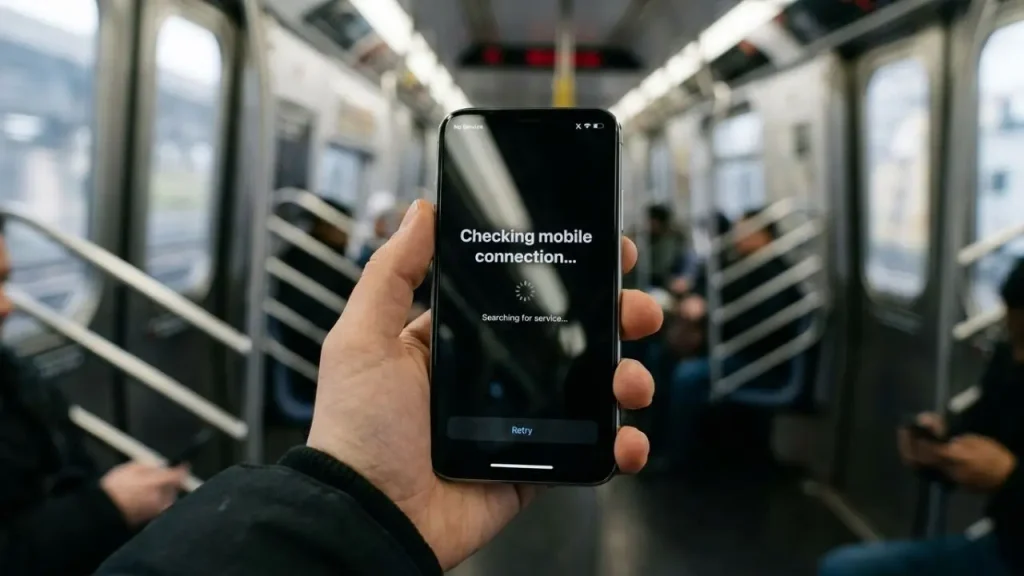
First, look at your phone’s screen. If only a few signal bars are displayed, move to a location with better reception. You can also try enabling Airplane Mode, waiting about ten seconds, and then disabling it.
Afterward, try making a call. If regular calls also fail, the problem may lie with your connection.
Additionally, check whether your mobile service provider is experiencing an outage. If the network remains unavailable, their customer service team can inform you whether repairs or other solutions are required.
2. Restart your phone
Sometimes, a simple restart is enough to resolve minor software issues. This reboots the operating system and allows certain functions to return to normal operation.
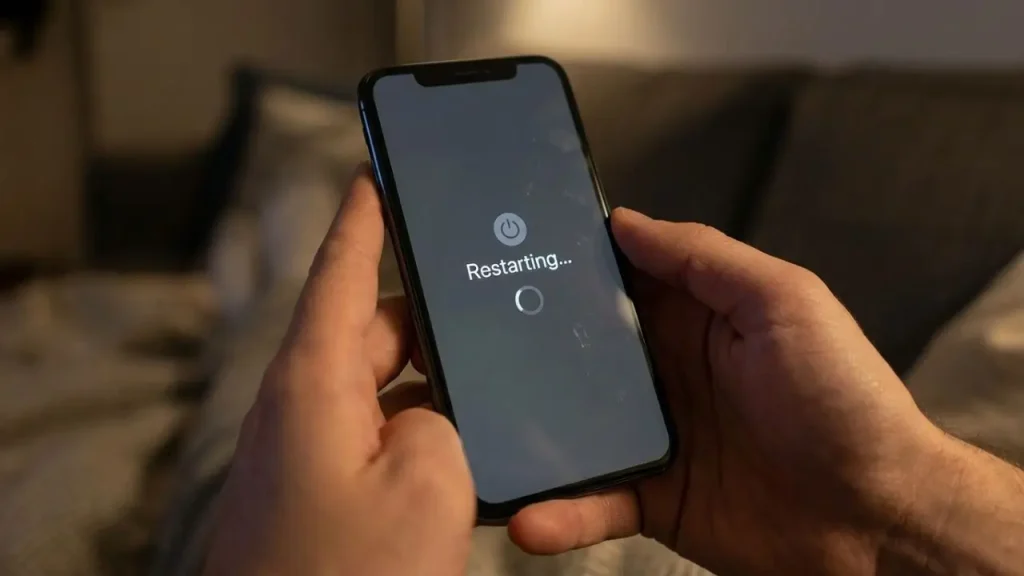
Turn off your phone, wait a few seconds, and then turn it back on. Afterward, open the phone app and test your voicemail.
Also, check whether a software update is available. On an iPhone, you can find this option under “Settings” > “General” > “Software Update.” On Android, the update feature is typically located within the system settings.
Install any available updates using a reliable connection. An up-to-date operating system can fix bugs and improve performance. However, an update does not guarantee that every voicemail issue will be resolved.
The update function is typically found in the system settings.
Install any available updates using a reliable connection. Keeping your operating system up to date can fix bugs and improve performance—though an update does not guarantee that every voicemail issue will be resolved.
3. Check your voicemail settings
Incorrect settings can prevent callers from reaching your voicemail. It is possible that voicemail has not yet been set up, or that call forwarding is not functioning correctly.
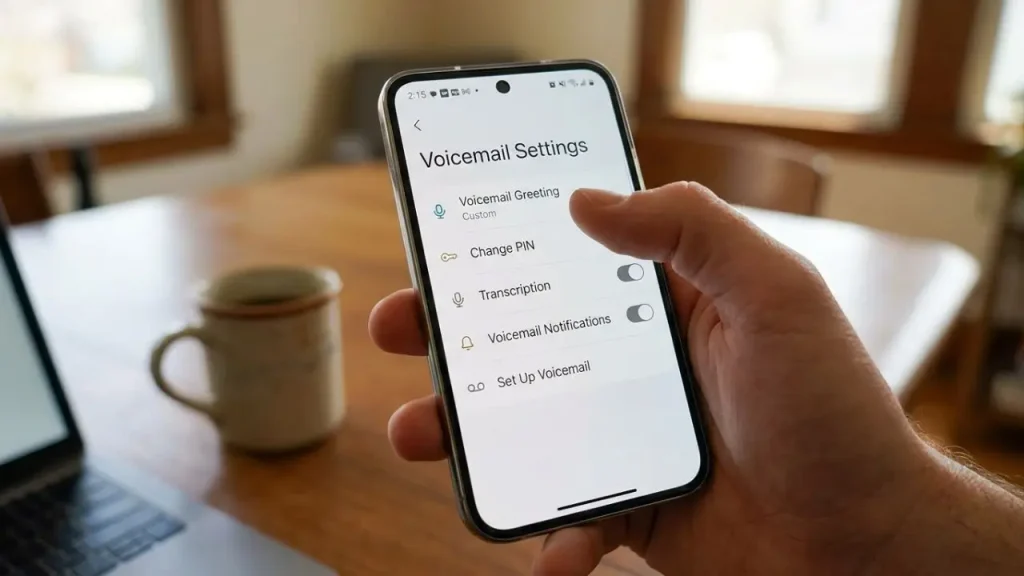
On your iPhone, open the Phone app and locate the voicemail section. The available features will depend on your iOS version and your mobile carrier.
On Android, open the Phone app and look for “Settings” and then “Voicemail” within the menu. There, you can review the available options.
If your voicemail is still not working on your iPhone, visit the Apple Support website for official troubleshooting help and device-specific instructions.
On many mobile phones, you can also press and hold the number “1” key to call your voicemail. If you hear an error message, contact your service provider. Avoid changing call forwarding settings arbitrarily, as incorrect configurations can lead to further issues.
4. Clean up your voicemail inbox
Your voicemail inbox may be full. If storage space is limited, some services may no longer be able to accept new messages.
Call your voicemail or open your list of messages. Listen to old messages and delete the ones you no longer need.
With some providers, deleted messages remain in a “trash” folder or a designated area for deleted items. Check whether you need to remove them from there as well.
Afterward, ask a friend to leave you a short test message. If it comes through, your voicemail is likely working again.
If your inbox is empty and callers still cannot leave messages, your service provider can check your storage settings and your account.
5. Troubleshoot Visual Voicemail issues
Visual Voicemail displays your voicemails as a list on your screen, eliminating the need to retrieve each message individually by calling a phone number.
If new messages do not appear, first check your mobile data or Wi-Fi connection. Depending on your carrier, Visual Voicemail requires an active data connection to load messages.
Next, close the Phone app and reopen it. If you are using Android, also check whether an update is available for the app.
You can also try calling your voicemail inbox directly. If the messages are present there, the issue may be limited to the Visual Voicemail feature itself.
Do not immediately delete all app data, as this could result in the loss of saved settings or local information.
Conclusion
If your voicemail isn’t working, start by checking your signal, restarting your phone, and reviewing your settings. Next, clear out your mailbox and test Visual Voicemail. If it still doesn’t work, your mobile carrier can help; they can verify whether your voicemail is activated or if there is a technical issue. This allows you to identify the root cause without making unnecessary changes to important settings.
Frequently Asked Questions: Why isn’t my voicemail working?
1. Why isn’t the voicemail on my smartphone working?
Your voicemail might not be working due to network issues, incorrect settings, a voicemail service that hasn’t been activated, or outdated software.
2. How can I fix voicemail issues on Android or iPhone?
Restart your smartphone, check your network connection, and ensure that voicemail is enabled. If the problem persists, contact your mobile service provider.
3. Why am I not receiving voicemail messages?
Your voicemail inbox might be full, call forwarding might be set up incorrectly, or your mobile service provider might be experiencing an outage. Check your voicemail settings and, if necessary, contact your provider.
